


Quick answer
What this guide helps you do
Fix a Docker container stuck in a restart loop by checking logs, exit codes, OOM kills, healthchecks, environment variables, volumes and Compose dependencies.
Quick answer
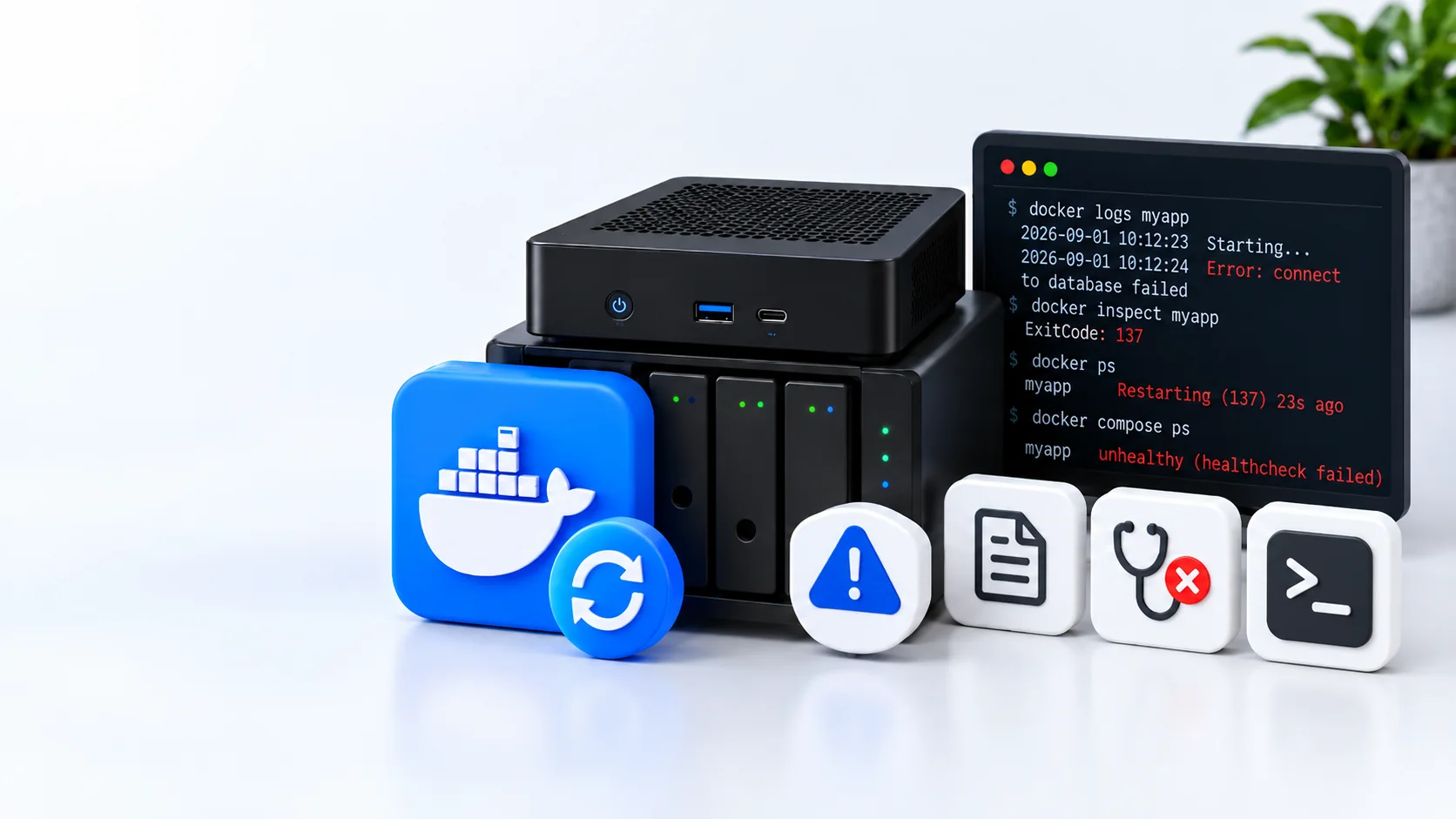
A Docker restart loop means the container’s main process keeps exiting and its restart policy starts it again.
Capture the evidence before recreating anything:
docker ps -a
docker logs --timestamps --tail=200 <container-name>
docker inspect <container-name> --format \
  'status={{.State.Status}} exit={{.State.ExitCode}} oom={{.State.OOMKilled}} error={{json .State.Error}} restarts={{.RestartCount}}'
docker inspect <container-name> --format '{{json .State.Health}}'
Then check the first error, exit code, memory state, configuration, mounted paths and dependencies.
Do not run docker compose down -v, delete volumes, prune Docker data or repeatedly recreate the entire stack. Those actions can remove useful evidence or persistent data without fixing the cause.
What Restarting actually means
Docker applies a restart policy when the container process exits.
Common policies are:
| Policy | Behaviour |
|---|---|
no | Do not restart automatically |
on-failure[:max-retries] | Restart after a non-zero exit code, optionally with a retry limit |
always | Restart whenever it stops, subject to Docker’s manual-stop behaviour |
unless-stopped | Restart unless an administrator deliberately stopped it |
A restart policy does not repair the application. It only decides what Docker does after the process ends.
Inspect the current policy:
docker inspect <container-name> --format '{{.HostConfig.RestartPolicy.Name}} {{.HostConfig.RestartPolicy.MaximumRetryCount}}'Do not change the policy to always merely to hide a crash.
Step 1: identify the affected container
docker ps -a --filter status=restarting
docker ps -a --filter status=exited
docker compose ps -a
Record:
Container:
Image and tag:
Compose project:
Current status:
Restart count:
Exit code:
OOM killed:
Health status:
Last known working change:
If every container stopped together, check the Docker service, host storage and mounts before treating each container as an individual fault.
Step 2: read the earliest useful log error
Start with a bounded log view:
docker logs --timestamps --tail=200 <container-name>For Compose:
docker compose logs --timestamps --tail=200 <service-name>Look for the first meaningful error before the shutdown messages repeat.
Common patterns include:
- configuration file missing or invalid
- permission denied
- database locked or migration failed
- port already in use
- dependency connection refused
- hostname cannot be resolved
- required environment variable missing
- file or directory not found
- unsupported command-line argument
- out-of-memory termination
Follow the logs only after capturing the existing output:
docker logs --timestamps --follow <container-name>Press Ctrl+C to stop following; this does not stop the container.
Step 3: inspect the exit state
docker inspect <container-name> --format \
  'status={{.State.Status}} exit={{.State.ExitCode}} oom={{.State.OOMKilled}} error={{json .State.Error}} started={{.State.StartedAt}} finished={{.State.FinishedAt}} restarts={{.RestartCount}}'
Useful exit-code clues include:
| Exit code | Common meaning | What to check |
|---|---|---|
0 | Process completed normally | Wrong command for a long-running service or intentional one-shot task |
1 | General application error | Application logs and configuration |
126 | Command found but cannot execute | Permissions, architecture or mount flags |
127 | Command not found | Image entrypoint, command and paths |
137 | Process received SIGKILL | Check OOMKilled, host memory and manual/daemon termination |
143 | Process received SIGTERM | Normal stop, dependency shutdown or external restart |
Exit code 137 does not prove an out-of-memory event. Confirm:
docker inspect <container-name> --format '{{.State.OOMKilled}}'
free -h
sudo journalctl -k --since '-30 minutes' --no-pager | grep -i -E 'oom|out of memory|killed process'
Step 4: distinguish unhealthy from restarting
A healthcheck runs a command inside the container and records starting, healthy or unhealthy.
Inspect it:
docker inspect <container-name> --format '{{json .State.Health}}'
docker inspect <container-name> --format '{{json .Config.Healthcheck}}'
An unhealthy result does not normally make the Docker Engine restart an otherwise running standalone container. Restart policies respond to the main process exiting. Other tooling may react to health status, and Compose can wait for a dependency marked service_healthy.
Check whether the healthcheck itself is valid:
- does the image contain
curl,wgetor the command being called? - is the URL correct inside the container?
- is the startup period long enough?
- does the application require authentication?
- is the dependency reachable on the correct network?
Do not disable a useful healthcheck simply to turn the status green.
Step 5: validate the Compose configuration
From the correct project directory:
docker compose config
docker compose config --images
docker compose ps -a
The rendered configuration reveals substituted variables and merged files.
Protect the output if secrets appear. Check:
- image and tag
- command and entrypoint overrides
- environment-variable names
- bind-mount source paths
- named volumes
- published ports
- networks and aliases
- user, group and device mappings
- restart policy
- healthcheck
- dependency conditions
Compare the current Compose file with the last known working version.
Step 6: check environment variables and secrets
An empty or renamed variable can make an application exit immediately.
List the environment keys without publishing secrets:
docker inspect <container-name> --format '{{range .Config.Env}}{{println .}}{{end}}'Run that only in a private terminal because values may be sensitive.
Check that:
- the expected
.envfile is in the Compose project directory - variable names match the image documentation
- passwords containing special characters were quoted correctly
- secret files exist and are readable
- an update did not rename or remove an option
Do not paste complete environment output into a public support post.
Step 7: verify volumes and permissions
Inspect mounts:
docker inspect <container-name> --format '{{range .Mounts}}{{println .Type .Source "->" .Destination .Mode}}{{end}}'For every bind mount:
findmnt -T /host/path
namei -l /host/path
ls -ld /host/path
Confirm:
- the host source exists
- the underlying disk or network share is mounted
- Docker did not start against an empty mount-point directory
- the container user can read or write as required
- the mount is not unexpectedly read-only
- free disk space and inodes remain available
df -hT
df -ih
Use Docker Container Cannot Access a Mounted Folder for the permission path. Do not use chmod 777 as a general repair.
Step 8: check ports and dependencies
For a port error:
docker port <container-name>
sudo ss -lntup
For dependencies:
docker network ls
docker inspect <container-name> --format '{{json .NetworkSettings.Networks}}'
docker compose logs --tail=100 <dependency-service>
Starting first is not the same as being ready. A database may need time to become healthy before the application connects.
Where the image provides a meaningful healthcheck, Compose can wait for:
depends_on:
  database:
    condition: service_healthy
Use the service names and healthcheck supported by the actual stack. Do not paste this fragment without adapting it to a complete valid Compose file.
Step 9: check the image and architecture
docker inspect <container-name> --format '{{.Config.Image}}'
docker image inspect <image-name> --format '{{.Id}} {{.Architecture}} {{.Os}}'
uname -m
If the problem started after pulling an image:
- read that image’s release notes
- confirm the tag did not move to a breaking release
- verify the CPU architecture
- check required migrations and variables
- retain the previous image ID or digest
- change only the affected service during testing
Do not update every container while diagnosing one failure.
Step 10: recreate only after finding the cause
Once configuration and data are protected:
docker compose up -d --no-deps --force-recreate <service-name>
docker compose ps <service-name>
docker compose logs --timestamps --tail=100 <service-name>
Recreating is appropriate when the container definition changed or its replaceable writable layer is damaged. It does not fix a broken database, missing mount or invalid environment value.
Never add -v to docker compose down during routine troubleshooting unless deleting named volumes is explicitly intended and independently recoverable.
Safe diagnostic order
identify restarting container
→ capture logs and inspect state
→ interpret exit code and OOM status
→ inspect healthcheck
→ render Compose configuration
→ verify variables, mounts and free space
→ test ports and dependencies
→ check image changes
→ recreate only the affected service
Verification checklist
- Container remains running for longer than the previous loop.
- Restart count stops increasing.
- Health status becomes healthy where configured.
- Logs contain no repeating startup error.
- Persistent data is present.
- Required mounts are active.
- Dependencies are reachable.
- Application works through its intended local address.
- Service survives a controlled Docker restart.
- Recovery notes and configuration are updated.
Official Docker references
- Docker restart policies
- docker logs reference
- docker inspect reference
- Docker Compose services, healthchecks and restart settings
Related SmallGrid guides
- Fix Docker Containers After a Server Reboot
- Docker Image Pull Failed After an Update
- Docker Container Cannot Access a Mounted Folder
- Docker Volumes vs Bind Mounts
- How to Update Docker Containers Safely
Recap
A restart policy is the mechanism repeating the failure, not usually the cause. Capture logs, exit state, OOM status and healthcheck output before recreating anything. Then verify Compose configuration, environment values, mounted data, dependencies and the image change that preceded the loop.