


Quick answer
What this guide helps you do
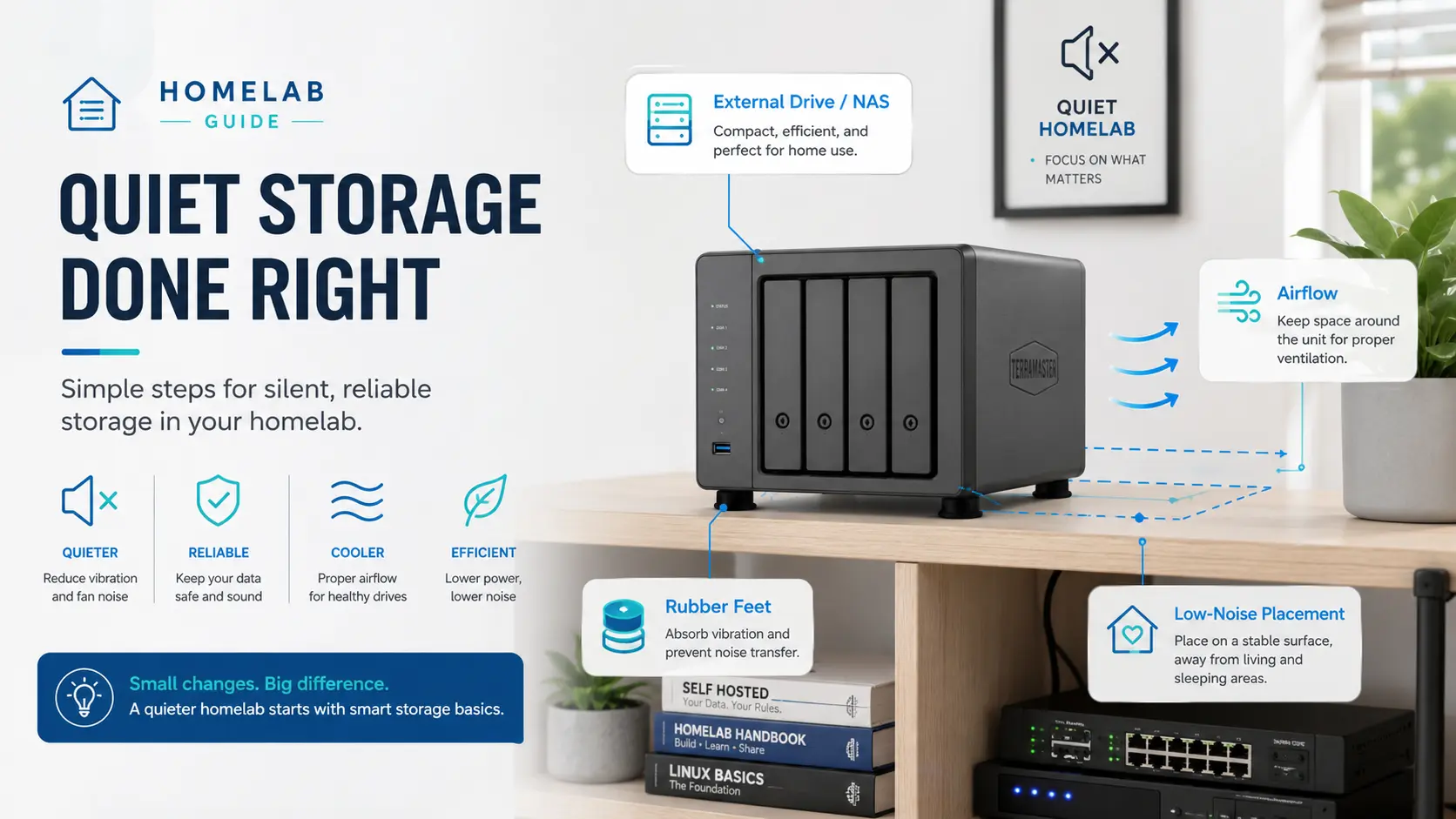
Add storage to a home server quietly with better drive placement, airflow, vibration control, sensible enclosures, and realistic power choices.
Useful Amazon UK links
These are optional links for hardware or accessories relevant to this guide. Compare prices and specifications before buying.
A quiet option for operating systems, services, and smaller always-on datasets.
Better value for bulk storage when some noise and power use are acceptable.
Check cooling, drive mounting, power delivery, and suitability for continuous use.
Goal
Add more storage to your homelab without:
- turning the room into a constant hum
- making your desk or shelf vibrate
- overheating hard drives
- wasting power on storage you rarely use
- buying rack gear you do not need
Quiet storage is mostly about placement, vibration, airflow, and sensible expectations.
You do not need a datacentre. You need storage that works without annoying you.
The default recommendation
For a small home server, start with this pattern:
Mini PC or small server for compute
SSD for the operating system and services
One or more larger drives for bulk storage
Simple local backup or NAS backup target
Keep noisy storage away from your ears.
If you can, put spinning disks somewhere stable, cool, and out of the room where you work or sleep.
Why storage gets loud
There are three usual causes.
Vibration
Spinning hard drives vibrate. That vibration can travel into:
- thin metal cases
- wooden desks
- shelves
- floorboards
- cheap drive enclosures
That is often the low hum people notice at night.
Heat
Warm drives need more airflow.
More airflow usually means more fan noise.
Bad airflow turns quiet storage into noisy storage because fans work harder to compensate.
Resonance
Some surfaces amplify vibration.
The same drive enclosure can sound fine on one shelf and annoying on another.
Moving it a few feet, adding rubber feet, or putting it on a heavier surface can make a surprising difference.
Step 1: Work out what noise you actually have
Before buying anything, listen to the current setup.
Ask:
Is it fan noise?
Is it drive hum?
Is it rattling?
Is it vibration through furniture?
Is it only loud during backups or scans?
A useful quick test:
- Put your hand gently on the case or enclosure.
- Press lightly on the desk or shelf.
- Move the enclosure onto a towel temporarily.
- Listen for changes.
If the noise drops when you touch or move the enclosure, vibration is likely part of the problem.
Step 2: Check drive temperatures
Do not solve noise by cooking your drives.
Install SMART tools if needed:
sudo apt update
sudo apt install -y smartmontools
List disks:
lsblk -o NAME,SIZE,MODEL,MOUNTPOINTCheck a drive temperature:
sudo smartctl -A /dev/sdX | grep -i temperatureReplace /dev/sdX with the correct drive.
Example output might include:
194 Temperature_Celsius 0x0022 035 050 000 Old_age Always - 35As a rough home-server rule, drives sitting around the mid-20s to mid-30s °C are usually comfortable.
Drives living in the 40s all the time may need better airflow or a better location.
Step 3: Reduce vibration first
Vibration fixes are often cheap.
Try:
- rubber feet
- a dense foam pad
- a mouse mat under the enclosure
- moving the drive off a hollow desk
- moving the enclosure to a heavier shelf
- tightening loose screws
- separating drives so they do not rattle together
Avoid fully wrapping drives in foam or fabric. That can trap heat.
The goal is to stop vibration transferring into furniture, not to insulate the drive like a pillow.
Step 4: Improve airflow without adding noise
Good airflow does not always mean loud airflow.
Better options:
- move the enclosure away from walls
- keep vents clear
- clean dust from fans and vents
- use a larger, slower fan if the enclosure supports it
- avoid stacking drives tightly
- avoid closed cupboards with no airflow
A quiet fan moving a small amount of air is better than a sealed box getting hot.
If a cupboard is the only location available, check temperatures during a backup or media scan, not just at idle.
Step 5: Choose the right storage type
SSDs
SSDs are best for:
- operating systems
- Docker volumes
- databases
- small services
- frequently accessed files
- anything where silence matters
They are quiet and efficient, but more expensive per terabyte.
2.5-inch hard drives
2.5-inch drives are usually quieter than 3.5-inch drives, but often slower and smaller.
They can be useful for light storage, but they are not always the best value.
3.5-inch hard drives
3.5-inch drives are good for bulk storage.
They are usually better value per terabyte, but they add:
- more noise
- more vibration
- more power draw
- more heat
Use them where bulk storage matters.
Step 6: Be careful with USB enclosures
USB enclosures are convenient, but quality varies.
Look for:
- decent ventilation
- stable power supply
- rubber feet
- sensible drive mounting
- UASP support if possible
- no tiny screaming fan
Avoid the cheapest no-name enclosures for important always-on storage.
A bad enclosure can create more noise and more reliability issues than the drive itself.
For backups, USB disks can be fine. For always-on bulk storage, make sure the enclosure is designed to run for long periods.
Step 7: Put noisy storage somewhere sensible
The best noise fix is sometimes location.
Better locations:
- hallway cupboard with ventilation
- utility room
- under-stairs space with airflow
- solid shelf away from your desk
- near network gear if it is already out of the way
Bad locations:
- directly on a hollow desk
- beside your monitor
- on bedroom furniture
- in a sealed cupboard
- on a thin shelf that resonates
Even a quiet drive can become annoying if it is next to your head all day.
Step 8: Think about power use
Each extra drive adds power draw.
A rough guide:
| Storage type | Typical idle behaviour |
|---|---|
| SSD/NVMe | usually under 1–2W |
| 2.5-inch HDD | often a few watts |
| 3.5-inch HDD | commonly 3–8W when spinning |
| Multi-bay enclosure | drive power plus enclosure overhead |
These are rough ranges. Measure your own setup.
For the full method, see How to Measure Homelab Power Usage Properly.
Step 9: Use spin-down carefully
Drive spin-down can reduce noise and power use, but it is not always the answer.
It works best for drives that are accessed occasionally.
It works badly for drives that wake constantly because of scans, backups, monitoring, or media library activity.
Example with hdparm:
sudo hdparm -S 120 /dev/sdXCheck disks first:
lsblk -o NAME,SIZE,MODEL,MOUNTPOINTDo not guess the drive name.
A drive that spins up and down all day can be more annoying than one that stays quietly spinning.
Step 10: Separate live data from backups
Quiet storage does not remove the need for backups.
A useful layout is:
SSD:                 operating system and services
Bulk HDD:            media and large files
Backup disk/NAS:     backup copy
Offsite/cloud copy:  important data only
Do not treat one big quiet disk as your whole recovery plan.
For backup planning, see Backups That Don’t Lie: 3-2-1 for Home Servers.
Good quiet-storage patterns
One mini PC plus one USB backup disk
Good for beginners.
Mini PC with SSD
USB disk used for backup
Important data copied elsewhere
Low noise, simple setup, easy to understand.
Mini PC plus NAS in another room
Good when storage needs grow.
Mini PC runs services
NAS stores media and backups
Storage noise lives away from desk
More moving parts, but better placement options.
Small server with internal drives
Good if you want everything in one box.
One case
SSD for system
One or more HDDs for bulk storage
Large slow fans
Stable shelf or floor placement
Choose the case carefully. Cheap thin cases can make vibration worse.
Common mistakes
Buying too much storage too early
Unused spinning disks still create noise, heat, and power draw.
Buy for the next realistic stage, not an imaginary future archive.
Putting drives on a hollow desk
Desks can amplify vibration.
Move the enclosure, add rubber feet, or use a heavier surface.
Chasing silence but ignoring heat
A silent sealed box is not a good storage plan.
Quiet airflow beats trapped heat.
Assuming SSDs solve everything
SSDs solve noise well, but they do not remove the need for backups.
Using snapshots instead of backups
Snapshots help with rollback. They are not a replacement for backup copies.
See Proxmox Snapshots vs Backups: What Beginners Get Wrong.
FAQ
Should I use SSDs for everything?
Use SSDs where silence, speed, and low idle power matter. Use hard drives where large capacity matters more than noise.
Are USB hard drives okay for a home server?
They can be fine for backups and light use. For always-on storage, use a decent enclosure with good power and ventilation.
Should I spin down my hard drives?
Only if the drives are not waking constantly. For frequently accessed drives, spin-down can become more annoying than helpful.
Is a NAS quieter than USB storage?
Not automatically. A NAS can be quieter if it is placed away from you and has good cooling. A noisy NAS on your desk is still noisy.
Next steps
Useful related guides:
- Mini PCs Under £200: Picking a Tiny Box That Can Actually Homelab
- How to Measure Homelab Power Usage Properly
- Backups That Don’t Lie: 3-2-1 for Home Servers
- Jellyfin on Ubuntu: Low-Power Setup and Folder Permissions
- Proxmox Snapshots vs Backups: What Beginners Get Wrong
Recap
Quiet storage is mostly about:
- reducing vibration
- keeping airflow sensible
- placing noisy disks away from you
- using SSDs for quiet always-on workloads
- using hard drives where bulk storage makes sense
- backing up anything important
Start with the simplest setup that meets the need. Add storage only when the current setup actually needs it.