


Quick answer
What this guide helps you do
Understand Jellyfin Docker bind mounts, host paths, container paths, read-only media mounts, Compose mappings, docker inspect output, and why media folders appear empty.
Jellyfin beginner path
New to Jellyfin? Follow this order.
These guides form the SmallGrid Jellyfin path: install it, fix folder access, solve empty libraries, reduce unnecessary transcoding, then choose the right mini PC.
Quick answer
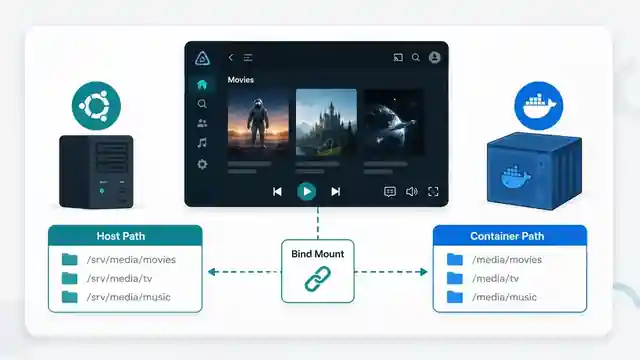
Docker gives Jellyfin one path on the host and another path inside the container.
Example:
volumes:
  - /srv/media/movies:/media/movies:ro
This mapping means:
Host path:      /srv/media/movies
Container path: /media/movies
Access mode:    read-only
Inside Jellyfin, add:
/media/moviesDo not add /srv/media/movies unless that exact path has also been mounted inside the container.
The fastest verification is:
ls -la /srv/media/movies
docker exec jellyfin ls -la /media/movies
If the first command shows files and the second does not, the bind mount is wrong, missing, or not applied.
What this guide covers
This guide is strictly about Docker path mapping:
- host paths
- container paths
- bind mounts
- read-only and read-write options
- Compose volume syntax
- verifying mounts with
docker inspect - testing what Jellyfin can see inside the container
It does not provide a full Linux permissions repair workflow.
Use Jellyfin Docker Permissions when the correct files are mounted inside the container but Jellyfin receives Permission denied.
Use Jellyfin Library Not Showing Files when you need the broader decision tree covering mounts, permissions, library types, naming, scans, and logs.
The three path layers
A Docker Jellyfin setup often contains three separate path references:
| Layer | Example | Where it is used |
|---|---|---|
| Host path | /srv/media/movies | Ubuntu, Docker Compose, shell commands on the server |
| Container path | /media/movies | Inside the Jellyfin container |
| Jellyfin library path | /media/movies | Jellyfin dashboard when adding a library |
The container path and Jellyfin library path normally match.
The host path can be completely different.
A useful mental model is:
Ubuntu host
└── /srv/media/movies
       │
       │ Docker bind mount
       ▼
Jellyfin container
└── /media/movies
       │
       │ Selected in Jellyfin library settings
       ▼
Movies library
Docker does not automatically expose the host filesystem to the container. Only configured mounts are visible.
How bind-mount syntax works
A short-form Compose bind mount uses:
HOST_PATH:CONTAINER_PATH:OPTIONSExample:
- /srv/media/tv:/media/tv:roInterpretation:
| Part | Value | Meaning |
|---|---|---|
| Host source | /srv/media/tv | Real directory on Ubuntu |
| Container destination | /media/tv | Directory Jellyfin sees |
| Option | ro | Container can read but not write |
The left and right sides are not interchangeable.
This is wrong inside Jellyfin:
/srv/media/tvThis is correct for the mapping above:
/media/tvComplete Compose example
services:
  jellyfin:
    image: lscr.io/linuxserver/jellyfin:latest
    container_name: jellyfin
    environment:
      - PUID=1000
      - PGID=1000
      - TZ=Europe/London
    volumes:
      - ./config:/config
      - /srv/media/movies:/media/movies:ro
      - /srv/media/tv:/media/tv:ro
    ports:
      - "8096:8096"
    restart: unless-stopped
The mapping table is:
| Host | Container | Jellyfin library path | Mode |
|---|---|---|---|
./config | /config | Not added as a media library | Read-write |
/srv/media/movies | /media/movies | /media/movies | Read-only |
/srv/media/tv | /media/tv | /media/tv | Read-only |
The Jellyfin library paths should therefore be:
/media/movies
/media/tv
The paths /srv/media/movies and /srv/media/tv exist only on the host.
Short syntax versus long syntax
Compose also supports a longer, more explicit format.
Short syntax:
volumes:
  - /srv/media/movies:/media/movies:ro
Long syntax:
volumes:
  - type: bind
    source: /srv/media/movies
    target: /media/movies
    read_only: true
Both describe the same mapping.
Long syntax can be easier to review because source, target, and read_only are named explicitly.
Verify the host path first
Before checking Docker, prove that the source exists and contains the expected files.
ls -ld /srv/media/movies
ls -la /srv/media/movies | head
A sanitised healthy example could look like:
drwxr-x--- 5 media media 4096 Jul 12 09:10 /srv/media/movies
total 24
drwxr-x--- 2 media media 4096 Jul 10 18:20 Film One (2024)
drwxr-x--- 2 media media 4096 Jul 11 20:42 Film Two (2025)
If the directory is empty on the host, Docker cannot expose media that is not there.
If the path does not exist, Docker may create an empty directory when the container starts, depending on how the mount is defined. This can make a typo look like a valid but empty media folder.
Check the underlying filesystem or mount:
findmnt -T /srv/media/moviesUseful interpretation:
- expected disk or pool shown: continue to Docker checks
- root filesystem shown unexpectedly: the media disk may not be mounted
- no useful result: verify the path and parent mount
Verify what the container can see
Run:
docker exec jellyfin ls -ld /media/movies
docker exec jellyfin ls -la /media/movies | head
Healthy output should show the same folders or files visible on the host.
Compare both sides directly:
printf 'Host count: '
find /srv/media/movies -mindepth 1 -maxdepth 1 | wc -l

printf 'Container count: '
docker exec jellyfin sh -c 'find /media/movies -mindepth 1 -maxdepth 1 | wc -l'
The counts do not prove that every nested file is readable, but they are a useful first comparison.
If the host count is greater than zero and the container count is zero, inspect the mount definition.
Inspect the active mounts
Do not assume the running container matches the Compose file currently open in your editor.
Inspect the active container:
docker inspect jellyfin --format '{{json .Mounts}}'For readable formatted output, use:
docker inspect jellyfin --format '{{range .Mounts}}{{println .Type .Source "->" .Destination "RW=" .RW}}{{end}}'A sanitised healthy result might be:
bind /home/user/jellyfin/config -> /config RW= true
bind /srv/media/movies -> /media/movies RW= false
bind /srv/media/tv -> /media/tv RW= false
Check all four details:
Typeshould normally bebindfor host-directory mappings.Sourcemust be the intended host directory.Destinationmust match the path used in Jellyfin.RW=falseis expected for a:romedia mount.
If the mount is absent from docker inspect, the running container has not received that mapping.
Apply Compose changes correctly
After editing compose.yml or docker-compose.yml, run the command from the directory containing that file:
docker compose config
docker compose up -d
docker compose config renders the resolved configuration and catches many YAML or variable problems before recreation.
Then confirm the active mount:
docker inspect jellyfin --format '{{range .Mounts}}{{println .Source "->" .Destination}}{{end}}'If the container was started by another Compose project or from a different directory, editing the wrong file will not change it.
Useful checks:
docker inspect jellyfin --format '{{index .Config.Labels "com.docker.compose.project.working_dir"}}'
docker inspect jellyfin --format '{{index .Config.Labels "com.docker.compose.project.config_files"}}'
These labels can reveal which Compose directory and file created the running container.
Broken mapping 1: using the host path in Jellyfin
Compose:
volumes:
  - /srv/media/movies:/media/movies:ro
Incorrect Jellyfin library path:
/srv/media/moviesCorrect Jellyfin library path:
/media/moviesWhy it fails:
The container does not automatically know about /srv/media/movies. It only knows the destination /media/movies.
Verification:
docker exec jellyfin ls -ld /srv/media/movies
docker exec jellyfin ls -ld /media/movies
Expected pattern:
ls: cannot access '/srv/media/movies': No such file or directory
drwxr-x--- ... /media/movies
Broken mapping 2: typo in the host source
Intended path:
/srv/media/moviesBroken Compose entry:
- /srv/medai/movies:/media/movies:roThe misspelling medai can result in an empty host directory being mounted.
Check the active source:
docker inspect jellyfin --format '{{range .Mounts}}{{if eq .Destination "/media/movies"}}{{println .Source}}{{end}}{{end}}'Then inspect that exact source:
ls -la /srv/medai/moviesFix the source path, recreate the container, and verify again.
Broken mapping 3: Compose change was not applied
You add:
- /srv/media/tv:/media/tv:roBut the running container still has no /media/tv mount.
Evidence:
docker inspect jellyfin --format '{{range .Mounts}}{{println .Source "->" .Destination}}{{end}}'If /media/tv is missing, run:
docker compose config
docker compose up -d
Then repeat the inspect command.
Do not rely only on the file contents. The running container state is the evidence that matters.
Broken mapping 4: destination mismatch
Compose:
- /srv/media/tv:/data/tv:roJellyfin library path:
/media/tvThe host source is correct, but the destination and library path do not match.
Either change the mapping:
- /srv/media/tv:/media/tv:roOr change the Jellyfin library path to:
/data/tvConsistency matters more than the specific destination name.
Broad mount versus separate mounts
Broad mapping:
- /srv/media:/media:roJellyfin paths:
/media/movies
/media/tv
/media/music
Separate mappings:
- /srv/media/movies:/media/movies:ro
- /srv/media/tv:/media/tv:ro
- /srv/media/music:/media/music:ro
Comparison:
| Approach | Advantages | Disadvantages |
|---|---|---|
| One broad mount | Simple, fewer lines, consistent parent path | Exposes every subdirectory under the source |
| Separate mounts | More explicit, narrower exposure, different options per library | More configuration to maintain |
Either approach is valid.
Avoid unnecessary overlapping destinations such as:
- /srv/media:/media:ro
- /srv/media/movies:/media/movies:ro
The nested mount shadows the matching part of the broader mount and makes troubleshooting harder.
Read-only versus read-write
For normal Jellyfin playback and library scanning, media can usually be mounted read-only:
- /srv/media:/media:roBenefits:
- Jellyfin cannot modify or delete media through that mount
- accidental writes from inside the container are reduced
- the intended access boundary is obvious in
docker inspect
The config directory must be writable:
- ./config:/configTranscode storage must also be writable when mounted explicitly:
- ./cache:/cacheDo not make /config read-only. Jellyfin needs to write its database, settings, metadata, and logs.
Relative host paths
This mapping uses a relative source:
- ./config:/configThe source is resolved relative to the Compose project directory, not necessarily your current shell directory after the container has been created.
Inspect the resolved path:
docker inspect jellyfin --format '{{range .Mounts}}{{if eq .Destination "/config"}}{{println .Source}}{{end}}{{end}}'For important media paths, absolute host paths are usually easier to audit:
- /srv/media/movies:/media/movies:roNamed volumes are different
This is a bind mount:
- /srv/media/movies:/media/movies:roThis is a named volume:
- jellyfin-config:/configNamed volume declaration:
volumes:
  jellyfin-config:
A named volume is managed by Docker and is not the same as a normal host directory path.
Inspect named volumes with:
docker volume ls
docker volume inspect jellyfin-config
Media libraries are usually easier to understand as bind mounts because the source directory is explicit.
PUID and PGID are not path mappings
LinuxServer images commonly support:
environment:
  - PUID=1000
  - PGID=1000
These values control which user identity the application uses for file access.
They do not change:
- the host path
- the container destination
- whether the bind mount exists
- which Jellyfin library path should be selected
Path problems and permission problems are separate tests.
Use this order:
- confirm the host path contains files
- confirm the active bind mount source and destination
- confirm the container can see the directory
- only then investigate permissions
Find the intended IDs with:
idExample:
uid=1000(mediauser) gid=1000(mediauser) groups=1000(mediauser),1001(media)Use Jellyfin Docker Permissions for UID, GID, group, ACL, and traversal checks.
A safe verification sequence
Run these in order:
# 1. Confirm the host source and underlying mount
findmnt -T /srv/media/movies
ls -la /srv/media/movies | head

# 2. Render and apply the Compose configuration
docker compose config
docker compose up -d

# 3. Inspect the active mount
docker inspect jellyfin --format '{{range .Mounts}}{{println .Type .Source "->" .Destination "RW=" .RW}}{{end}}'

# 4. Test the destination inside the container
docker exec jellyfin ls -la /media/movies | head

# 5. Check Jellyfin logs only after path visibility is confirmed
docker logs --tail 100 jellyfin
Interpretation table:
| Host result | Container result | Likely cause | Next action |
|---|---|---|---|
| Path missing | Path missing | Wrong host path | Correct the Compose source |
| Empty | Empty | Disk not mounted or source genuinely empty | Check findmnt, storage, and source contents |
| Files visible | Path missing | Bind mount absent or wrong destination | Inspect and recreate container |
| Files visible | Empty | Wrong source mounted or nested mount shadowing | Compare docker inspect source with intended path |
| Files visible | Permission denied | Mapping exists; access is blocked | Move to Docker permissions checks |
| Files visible | Files visible | Docker mapping works | Check Jellyfin library path and rescan |
Final verified-result checklist
A correct mapping should satisfy all of these:
[ ] The host source exists.
[ ] The host source contains the expected media.
[ ] findmnt shows the expected backing filesystem or pool.
[ ] docker compose config shows the intended mapping.
[ ] docker inspect shows the correct Source and Destination.
[ ] The destination exists inside the container.
[ ] The container can list the expected media.
[ ] Jellyfin uses the container destination as its library path.
[ ] The media mount is read-only unless write access is specifically required.
Once every item passes, the Docker volume mapping is no longer the likely cause.
Common mistakes
Editing a Compose file that did not create the container
Check the Compose labels with docker inspect rather than assuming the current directory is correct.
Testing only on the host
A healthy host path does not prove the container received it.
Testing only inside Jellyfin
The Jellyfin file picker does not explain whether the host source, mount, or destination is wrong.
Changing permissions before checking the mount
Permissions cannot fix a missing or incorrect bind mount.
Mounting an empty fallback directory
A failed disk mount can leave the mountpoint directory present but empty. Docker then exposes that empty directory correctly.
Using inconsistent destination names
/media/tv, /data/tv, and /tv can all work, but Compose and Jellyfin must agree.
Related guides
- Jellyfin 12.2 Update Guide: Fix Scanning, Crashes and Docker Problems
- Jellyfin Docker Permissions
- Jellyfin Library Not Showing Files
- Jellyfin Not Scanning New Files
- Give Jellyfin Access to Media Folders on Ubuntu
- Jellyfin Media Disappears After Reboot
Recap
The host path is where the media exists on Ubuntu. The container path is the destination Docker exposes to Jellyfin. The Jellyfin library must use that container path.
Verify the source on the host, inspect the active mount, and list the destination from inside the container. Only investigate permissions after the correct files are visible at the correct container path.
Jellyfin guide cluster
More Jellyfin fixes and setup guides
These guides link the main Jellyfin setup, permissions, remote access, direct play, and hardware topics together.
Jellyfin 12 Upgrade Guide: 10 Things to Check Before You Update
Prepare Jellyfin 10.10 or 10.11 for version 12: verify backups, plugins, Docker or Ubuntu packages, migrations, permissions, playback and rollback.
How to Reduce Jellyfin Server Power Use on Ubuntu
Reduce Jellyfin server electricity use on Ubuntu by measuring idle and playback power, avoiding unnecessary transcoding, checking background load, storage, CPU behaviour and reboot health.
Give Jellyfin Access to Media Folders on Ubuntu
Fix Jellyfin permission denied errors on Ubuntu. Test the service user, find blocked parent folders, apply safe ACLs, verify inheritance, and check mounted-drive options.
Jellyfin Library Not Showing Files? 8 Checks That Fix It
Fix a Jellyfin library that is empty or missing media. Check mounts, Linux permissions, Docker paths, library folders, naming, scans and logs in the correct order.
Jellyfin Docker Permissions: Fix Media Folder Access and UID/GID Errors
Fix Jellyfin Docker permission denied errors. Check bind mounts, container paths, UID and GID values, read-only media access, active mounts, and file visibility step by step.
Jellyfin Direct Play vs Transcoding: What Is the Difference?
Why is Jellyfin transcoding instead of Direct Playing? Compare Direct Play, Direct Stream and transcoding, CPU usage, quality and common triggers.