


Quick answer
What this guide helps you do
Fix Jellyfin Docker permission denied errors. Check bind mounts, container paths, UID and GID values, read-only media access, active mounts, and file visibility step by step.
Jellyfin beginner path
New to Jellyfin? Follow this order.
These guides form the SmallGrid Jellyfin path: install it, fix folder access, solve empty libraries, reduce unnecessary transcoding, then choose the right mini PC.
Printable helper
Prefer to work through this step by step?
Download the matching checklist and tick off the common causes while you work through the guide.
Quick answer
When Jellyfin runs in Docker, prove each layer in this order:
- the media exists on the host
- the active container mount maps the expected host path to the expected container path
- the container can list the media
- the container identity can read the files
- Jellyfin uses the container path, not the host path
Example mapping:
volumes:
  - /srv/media:/media:ro
This means:
Host path:      /srv/media
Container path: /media
Jellyfin path:  /media
Access mode:    read-only
The fastest checks are:
find /srv/media -maxdepth 3 -type f | head -20
docker inspect jellyfin \
  --format '{{range .Mounts}}{{println .Source "->" .Destination "RW=" .RW}}{{end}}'
docker exec jellyfin find /media -maxdepth 3 -type f | head -20
Interpretation:
| Result | Meaning |
|---|---|
| Host and container both list files | Mount visibility works; check the Jellyfin library path and scan |
| Host lists files but container does not | Bind mount, destination path, or active container configuration is wrong |
Container returns Permission denied | Container UID/GID, groups, Unix modes, ACLs, or mount options block access |
| Both paths are empty | Host storage may not be mounted |
Do not use chmod -R 777 as the permanent fix.
What this guide covers
This guide is specifically about Jellyfin Docker permissions and container identity.
For the broader permission model across Jellyfin, Sonarr, Radarr and download clients, including UID, GID, shared groups, umask and Docker 29.8’s new --umask option, read Docker File Permissions Explained.
It covers:
- host versus container paths
- checking the active bind mount
- identifying the user and groups inside the container
- official Jellyfin and LinuxServer-style identity configuration
- testing file access inside the running container
- fixing host permissions without giving unnecessary write access
- handling supplementary groups and render devices
- validating new-file inheritance
- confirming the fix after container recreation and host reboot
It does not repeat the complete host-to-container path tutorial. Use Jellyfin Docker Volume Paths Explained when the main issue is understanding or correcting path mapping.
Use Jellyfin Library Not Showing Files when you have not yet identified whether the failure is storage, mounts, Docker, permissions, scanning or naming.
For native Ubuntu package installations, use Give Jellyfin Access to Media Folders on Ubuntu.
The permission chain
A Docker Jellyfin container depends on several separate layers:
Mounted storage on host
        ↓
Host directory permissions
        ↓
Docker bind mount
        ↓
Container user and groups
        ↓
Container path visibility
        ↓
Jellyfin library path
A failure at an earlier layer cannot be fixed by changing a later one.
For example, adding /media/movies in Jellyfin does not help when the host disk is not mounted or the active container does not have /media mapped.
Diagnostic decision table
| Evidence | Most likely cause | Next action |
|---|---|---|
| Host path does not exist | Wrong source path | Find the real media path |
| Host path exists but is empty | Disk, pool or network share not mounted | Fix the host mount first |
Active docker inspect output lacks the mapping | Wrong Compose project or container not recreated | Apply the correct Compose file |
| Container path is missing | Destination path differs from the path being tested | Inspect active mounts and use the correct destination |
Container path exists but returns Permission denied | UID, GID, group, mode, ACL or mount option problem | Inspect container identity and host permissions |
| Container lists files but Jellyfin shows none | Wrong Jellyfin library path or scan issue | Add the exact container path and rescan |
| Existing media works but new imports fail | New files inherit different ownership or mode | Compare working and failing files and fix inheritance |
| Access disappears after reboot | Host storage mounted late or not at all | Fix persistent mount ordering before restarting Docker |
Step 1: Confirm the host storage
Check the exact source path used in Compose:
ls -ld /srv/media
find /srv/media -maxdepth 3 -type f | head -20
findmnt -T /srv/media
A useful result contains real media files:
/srv/media/tv/Show Name/Season 01/Show Name - S01E01.mkvIf the files are missing on the host, stop. Docker cannot expose files that are absent from the source path.
Record a count for later comparison:
find /srv/media -type f | wc -lStep 2: Inspect the active Docker mount
Do not assume the Compose file on disk matches the running container.
Inspect the live mount configuration:
docker inspect jellyfin \
  --format '{{range .Mounts}}{{println .Type .Source "->" .Destination "RW=" .RW}}{{end}}'
Expected shape:
bind /srv/jellyfin/config -> /config RW= true
bind /srv/media -> /media RW= false
This confirms:
- the source is
/srv/media - the destination is
/media - media is read-only
If the expected row is missing, find the active Compose project:
docker inspect jellyfin \
  --format 'Project={{index .Config.Labels "com.docker.compose.project"}} WorkingDir={{index .Config.Labels "com.docker.compose.project.working_dir"}} ConfigFiles={{index .Config.Labels "com.docker.compose.project.config_files"}}'
Then render the configuration from that project directory:
docker compose configStep 3: Test the container path directly
You normally do not need an interactive shell.
Run:
docker exec jellyfin ls -ld /media
docker exec jellyfin find /media -maxdepth 3 -type f | head -20
Compare file counts when the mounted trees are equivalent:
find /srv/media -type f | wc -l
docker exec jellyfin find /media -type f | wc -l
Interpretation:
| Host result | Container result | Meaning |
|---|---|---|
| Files visible | Files visible | Bind mount and basic read access work |
| Files visible | Path missing | Wrong destination or mapping not applied |
| Files visible | Empty | Wrong source, nested mount issue, or old container configuration |
| Files visible | Permission denied | Identity or host permission problem |
| Empty | Empty | Fix the host storage or mount first |
Step 4: Identify the container user
Check the configured Docker user:
docker inspect jellyfin --format 'Configured user={{json .Config.User}}'Then inspect the effective identity inside the running container:
docker exec jellyfin idPossible result:
uid=1000(jellyfin) gid=1000(jellyfin) groups=1000(jellyfin),44(video),109(render)The exact values vary. Record the numeric UID, primary GID and supplementary groups.
An empty .Config.User value does not prove the process is root. It means the image default is being used. The docker exec jellyfin id result is the useful runtime evidence.
Step 5: Understand image-specific identity settings
Official Jellyfin image
The official image can be run with a Compose user setting when required:
services:
  jellyfin:
    image: jellyfin/jellyfin
    user: "1000:1000"
LinuxServer-style image
LinuxServer images commonly use environment values:
environment:
  - PUID=1000
  - PGID=1000
Do not mix identity instructions from one image family into another without checking the image documentation and the running container.
After applying either approach, verify with:
docker exec jellyfin idStep 6: Check host ownership and modes
Inspect the host path and a known file:
namei -l /srv/media/tv
ls -ld /srv/media /srv/media/tv
find /srv/media/tv -type f -print -quit | xargs -r ls -l
getfacl /srv/media/tv
The container identity needs:
- execute permission on every parent directory
- read and execute access to library directories
- read access to media files
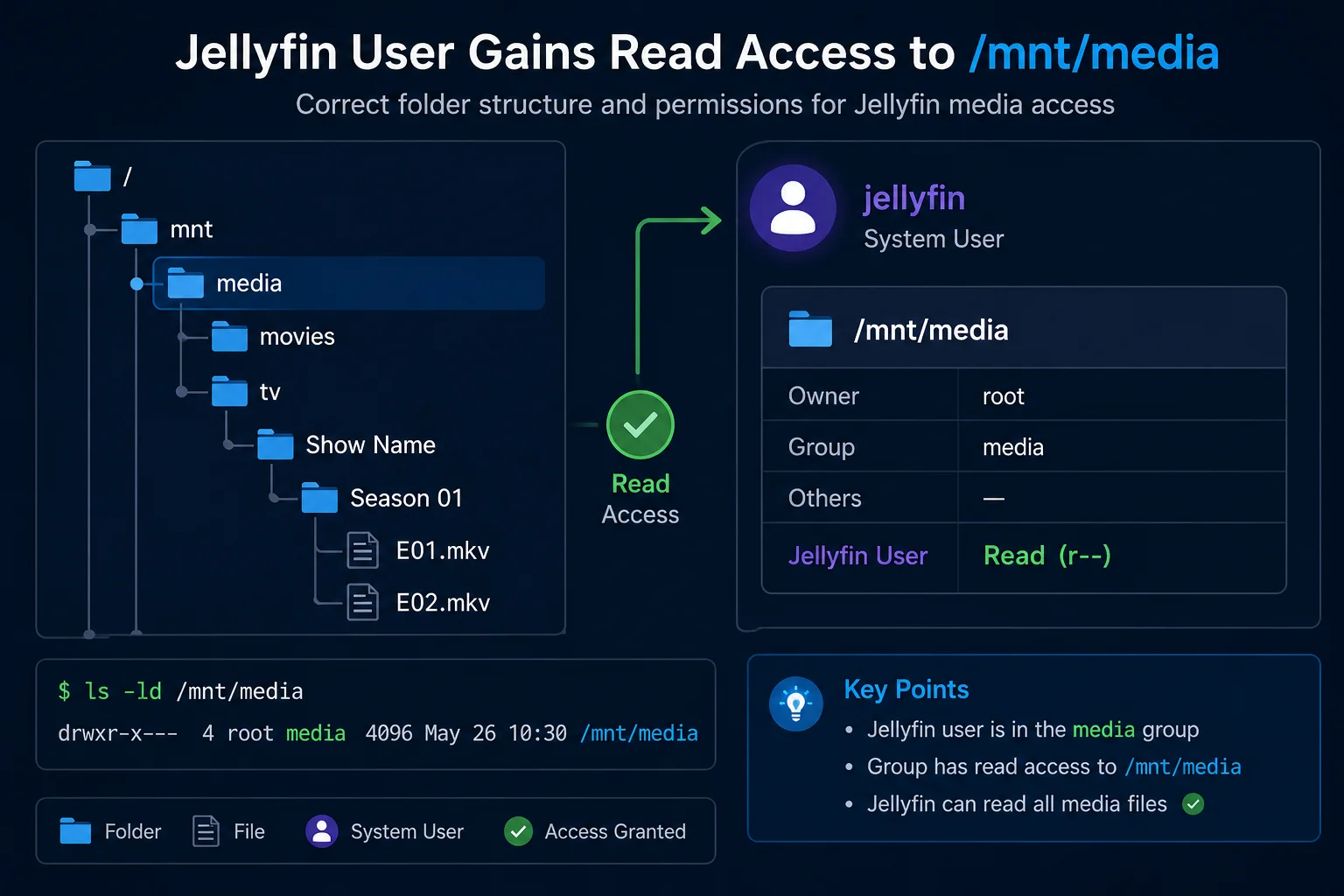
A common shared-group layout is:
Owner: downloader or media manager
Group: media
Jellyfin container: member of media group
Directories: group read and execute
Files: group read
Avoid changing the whole library owner to Jellyfin merely to solve playback access.
Step 7: Add a shared group when appropriate
Find the host media-group ID:
getent group mediaExample:
media:x:1001:seanAdd that supplementary group to the container:
services:
  jellyfin:
    group_add:
      - "1001"
Apply the configuration:
docker compose up -d --force-recreate jellyfinVerify:
docker exec jellyfin id
docker exec jellyfin find /media -maxdepth 3 -type f | head -20
The container’s id output should include the supplementary group ID.
Step 8: Use ACLs when a dedicated read grant is cleaner
On a normal Linux filesystem such as ext4, an ACL can grant the container UID read access without changing the main owner.
Suppose the effective container UID is 1000:
sudo apt install -y acl
sudo setfacl -R -m u:1000:rX /srv/media
sudo setfacl -R -d -m u:1000:rX /srv/media
Verify:
getfacl /srv/media
docker exec jellyfin find /media -maxdepth 3 -type f | head -20
Check the ACL mask if an entry exists but its effective permissions are reduced:
user:1000:r-x            #effective:r--
mask::r--
A suitable mask for directory traversal must allow execute permission.
Use numeric IDs carefully. A future image or Compose change can alter the effective UID.
Step 9: Keep media read-only unless writing is required
For normal playback and library scanning:
volumes:
  - /srv/media:/media:ro
Read-only media reduces accidental changes from inside the container.
Keep configuration and cache writable:
volumes:
  - /srv/jellyfin/config:/config
  - /srv/jellyfin/cache:/cache
  - /srv/media:/media:ro
Use read-write media only for a specific feature that genuinely modifies the library:
- /srv/media:/media:rwDo not interpret a read-only error as a read-permission failure. Jellyfin may be able to play the file while being correctly blocked from deleting or modifying it.
Step 10: Apply changes safely
First validate the rendered configuration:
docker compose configThen recreate only the Jellyfin service:
docker compose up -d --force-recreate jellyfinCheck status and logs:
docker ps --filter name=jellyfin
docker logs --since 10m jellyfin
Re-run the same evidence checks:
docker inspect jellyfin \
  --format '{{range .Mounts}}{{println .Source "->" .Destination "RW=" .RW}}{{end}}'
docker exec jellyfin id
docker exec jellyfin find /media -maxdepth 3 -type f | head -20
Changing Compose without recreating the container does not change the active mounts or identity.
Step 11: Add the correct path in Jellyfin
For this mapping:
- /srv/media:/media:roUse these paths inside Jellyfin:
/media/movies
/media/tv
Do not use:
/srv/media/movies
/srv/media/tv
unless those exact destinations exist inside the container.
After saving the library path, run a scan and check recent logs:
docker logs --since 10m jellyfinStep 12: Check new-file inheritance
When old media works but new imports fail, compare one working and one missing file on the host:
WORKING="/srv/media/tv/Working Show/Season 01/episode.mkv"
NEW="/srv/media/tv/New Show/Season 01/episode.mkv"

ls -l "$WORKING" "$NEW"
getfacl "$WORKING" "$NEW"
Then test the new file inside the container:
docker exec jellyfin stat "/media/tv/New Show/Season 01/episode.mkv"Inspect:
- owner UID
- group GID
- file mode
- directory traversal
- default ACLs
- downloader or media-manager umask
Fix the creating service or shared access model so future imports are correct. Do not rely on repeatedly repairing files after every download.
Worked diagnosis: host works, container gets permission denied
Starting evidence:
Host source:       /srv/media
Container target:  /media
Jellyfin path:     /media/tv
Container UID:GID: 1000:1000
Media group GID:   1001
Result:             Permission denied inside container
1. Host files exist
find /srv/media/tv -maxdepth 3 -type f | headResult: files listed.
2. Active mount is correct
docker inspect jellyfin \
  --format '{{range .Mounts}}{{println .Source "->" .Destination}}{{end}}'
Result:
/srv/media -> /media3. Runtime identity lacks the media group
docker exec jellyfin idResult does not include GID 1001.
4. Host media is group-readable by GID 1001
getent group media
ls -ld /srv/media/tv
5. Add the group
group_add:
  - "1001"
Recreate:
docker compose up -d --force-recreate jellyfin6. Verify the same path
docker exec jellyfin id
docker exec jellyfin find /media/tv -maxdepth 3 -type f | head
Final result:
Bind mount correct:       yes
Media group present:      yes
Container files visible:  yes
Media mount read-only:    yes
Jellyfin path:            /media/tv
This diagnosis changes only the missing access layer. It does not make the library world-writable or transfer ownership to Jellyfin.
Final verification
Confirm all of these:
- the host storage is mounted
- the host source contains real media
docker inspectshows the expected source and destination- the container identity is known
- the container can list a known media file
- media remains read-only unless writing is required
- Jellyfin uses the exact container path
- a scan completes without access errors
- new imports inherit usable access
- the same state returns after container recreation and host reboot
Useful final command block:
findmnt -T /srv/media
find /srv/media -maxdepth 3 -type f | head -20
docker inspect jellyfin \
  --format '{{range .Mounts}}{{println .Source "->" .Destination "RW=" .RW}}{{end}}'
docker exec jellyfin id
docker exec jellyfin find /media -maxdepth 3 -type f | head -20
docker logs --since 10m jellyfin
Related guides
-
Jellyfin 12.2 Update Guide: Fix Scanning, Crashes and Docker Problems
-
Docker File Permissions Explained: UID, GID, Umask and Shared Media Folders
Recap
A correct Docker mount does not automatically mean the container can read the files.
Prove the complete chain:
Host storage mounted
Host files visible
Active bind mount correct
Container identity known
Container files readable
Jellyfin library path correct
Scan succeeds
New imports inherit access
Fix the first failed layer, keep media read-only where possible, and verify the result from inside the running container.
Downloadable checklist
Save the matching PDF checklist
Use these while working through the guide, or keep a copy for the next time the same problem appears.
Jellyfin Docker Permissions Checklist
Check host paths, container paths, bind mounts, users, and read-only volumes.
Download PDFMore downloads are available in the SmallGrid checklists section.
Next guide
What to read next
Continue the setup path with these closely related guides.
Jellyfin Library Not Showing Files? 8 Checks That Fix It
Fix a Jellyfin library that is empty or missing media. Check mounts, Linux permissions, Docker paths, library folders, naming, scans and logs in the correct order.
Give Jellyfin Access to Media Folders on Ubuntu
Fix Jellyfin permission denied errors on Ubuntu. Test the service user, find blocked parent folders, apply safe ACLs, verify inheritance, and check mounted-drive options.
Jellyfin Direct Play vs Transcoding: What Is the Difference?
Why is Jellyfin transcoding instead of Direct Playing? Compare Direct Play, Direct Stream and transcoding, CPU usage, quality and common triggers.
Jellyfin guide cluster
More Jellyfin fixes and setup guides
These guides link the main Jellyfin setup, permissions, remote access, direct play, and hardware topics together.
Jellyfin 12 Upgrade Guide: 10 Things to Check Before You Update
Prepare Jellyfin 10.10 or 10.11 for version 12: verify backups, plugins, Docker or Ubuntu packages, migrations, permissions, playback and rollback.
How to Reduce Jellyfin Server Power Use on Ubuntu
Reduce Jellyfin server electricity use on Ubuntu by measuring idle and playback power, avoiding unnecessary transcoding, checking background load, storage, CPU behaviour and reboot health.
Give Jellyfin Access to Media Folders on Ubuntu
Fix Jellyfin permission denied errors on Ubuntu. Test the service user, find blocked parent folders, apply safe ACLs, verify inheritance, and check mounted-drive options.
Jellyfin Library Not Showing Files? 8 Checks That Fix It
Fix a Jellyfin library that is empty or missing media. Check mounts, Linux permissions, Docker paths, library folders, naming, scans and logs in the correct order.
Jellyfin Direct Play vs Transcoding: What Is the Difference?
Why is Jellyfin transcoding instead of Direct Playing? Compare Direct Play, Direct Stream and transcoding, CPU usage, quality and common triggers.
Jellyfin Supported Formats: Can It Play MKV, MP4 and HEVC?
Can Jellyfin play MKV, MP4 and HEVC? See supported containers, codecs and subtitles, plus why files Direct Play, Direct Stream or transcode.