

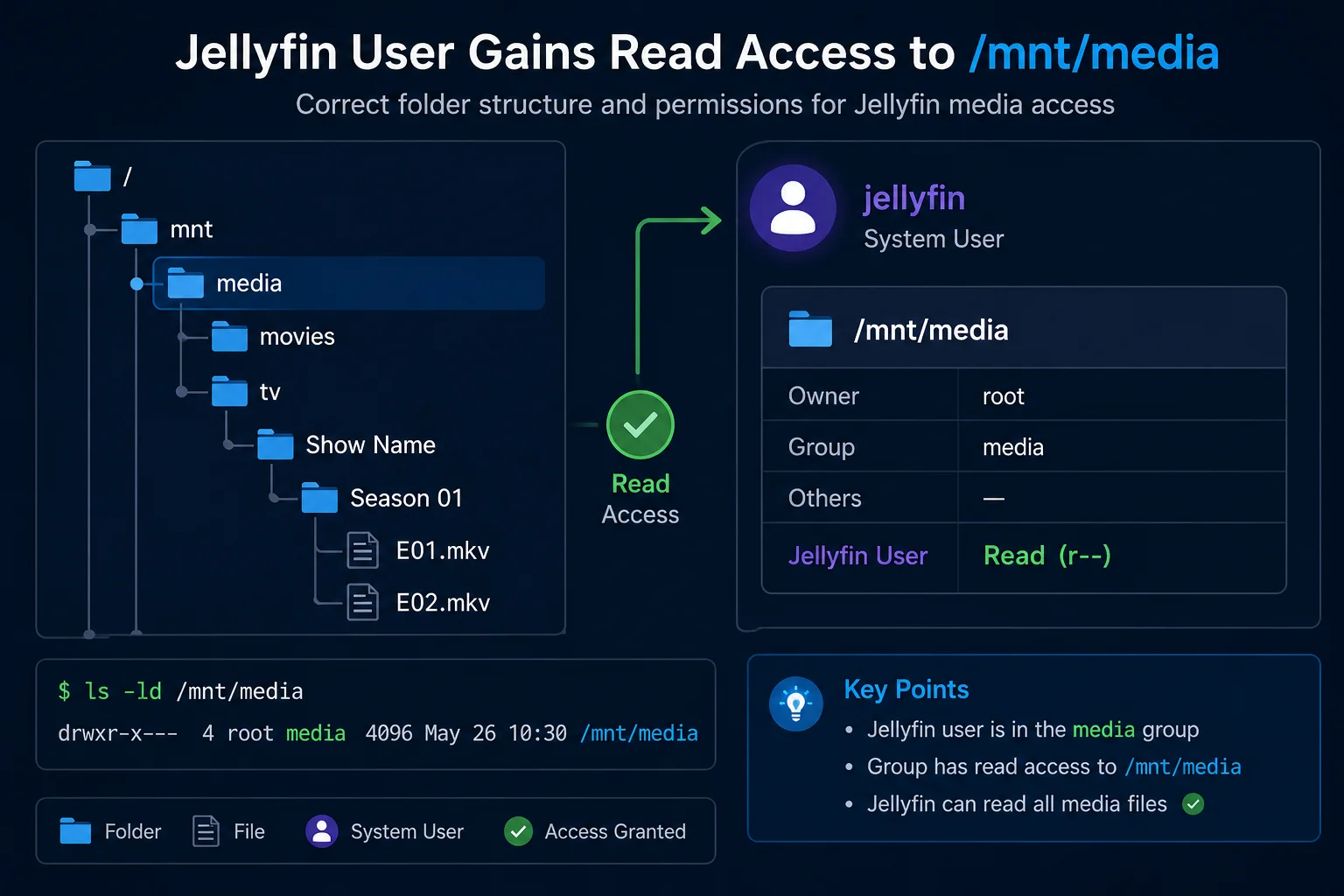

Quick answer
What this guide helps you do
Fix Jellyfin permission denied errors on Ubuntu. Test the service user, find blocked parent folders, apply safe ACLs, verify inheritance, and check mounted-drive options.
Jellyfin beginner path
New to Jellyfin? Follow this order.
These guides form the SmallGrid Jellyfin path: install it, fix folder access, solve empty libraries, reduce unnecessary transcoding, then choose the right mini PC.
Printable helper
Prefer to work through this step by step?
Download the matching checklist and tick off the common causes while you work through the guide.
Quick answer
For a native Jellyfin installation on Ubuntu, test the real media path as the jellyfin service user:
sudo -u jellyfin find /mnt/media -maxdepth 3 -type f | head -20Interpret the result before changing anything:
| Result | Meaning |
|---|---|
| Media files are listed | Linux access works; check the Jellyfin library path, scan, and logs |
Permission denied | Jellyfin cannot traverse or read part of the path |
| Path does not exist | The library path or mount point is wrong |
| Folder is empty | The disk or network share may not be mounted |
For a normal ext4 library, a targeted ACL is usually safer than changing ownership or using chmod 777:
sudo apt install -y acl
sudo setfacl -R -m u:jellyfin:rX /mnt/media
sudo setfacl -R -d -m u:jellyfin:rX /mnt/media
sudo systemctl restart jellyfin
Then repeat the original service-user test.
Use your real media path. Do not copy /mnt/media blindly.
What this guide covers
This guide is specifically for a native Jellyfin package installation on Ubuntu where the Linux jellyfin service account cannot read a media folder.
It covers:
- confirming the service account
- testing access as
jellyfin - identifying the exact parent directory blocking traversal
- reading Unix modes and ACLs
- applying the smallest required ACL change
- setting default ACLs for future files
- checking ACL masks
- handling ext4, NTFS, exFAT, SMB, CIFS, and NFS mounts
- proving that access survives a restart or reboot
It does not cover Docker user IDs or container paths. Use Jellyfin Docker Permissions for container installations.
Use Jellyfin Library Not Showing Files when you have not yet proved that permissions are the failing layer.
Permission model in one minute
Jellyfin needs three different kinds of access:
| Object | Required access | Why |
|---|---|---|
| Every parent directory | Execute (x) | Traverse through the path |
| Library directories | Read and execute (r-x) | List and enter folders |
| Media files | Read (r--) | Open and stream files |
A path can fail even when the final media directory looks readable.
Example:
/home/sean/media/tvJellyfin may have access to media and tv but still be blocked by /home/sean.
That is why namei -l is more useful than checking only the final folder.
Diagnostic decision table
| Evidence | Most likely cause | Next action |
|---|---|---|
id jellyfin fails | Service account missing or installation incomplete | Repair Jellyfin before changing files |
Your SSH user can list media but jellyfin cannot | Unix mode or ACL blocks the service | Run namei -l and getfacl |
| Jellyfin reaches the library root but not one show or film | Deeper folder has different access | Inspect that exact path |
| Existing files work but new imports fail | New files inherit unsuitable ownership, mode, or ACL | Add a default ACL and inspect the creating service |
| ACL entry exists but access still fails | ACL mask limits the effective permission | Check mask:: and #effective: output |
| Permissions appear to reset after reboot | Mount options define access | Inspect findmnt and /etc/fstab |
| Both your user and Jellyfin see an empty directory | Storage is not mounted | Fix the mount before changing permissions |
| Native tests pass but Jellyfin still shows nothing | Wrong library path, scan, or metadata problem | Check Jellyfin settings and logs |
Step 1: Confirm the Jellyfin service account
Check the account:
id jellyfinA typical result resembles:
uid=112(jellyfin) gid=118(jellyfin) groups=118(jellyfin),44(video),109(render)The numeric IDs vary by installation. The important point is that the account exists.
Confirm the running service:
systemctl status jellyfin --no-pagerYou can also check the configured service user:
systemctl show jellyfin -p User -p GroupExpected shape:
User=jellyfin
Group=jellyfin
If your service uses another account, use that account in every test instead of assuming jellyfin.
Step 2: Confirm the real media path
Find real media files on the host:
ls -ld /mnt/media
find /mnt/media -maxdepth 3 -type f | head -20
A useful result looks like:
/mnt/media/tv/Show Name/Season 01/Show Name - S01E01.mkvIf the command returns nothing, stop. Jellyfin cannot scan files that are not present at the host path.
Linux paths are case-sensitive:
/mnt/media/tv
/mnt/Media/TV
These are different paths.
Check the path configured in Jellyfin under:
Dashboard → Libraries → Select library → Manage foldersFor a native installation, the Jellyfin path should normally be the same host path you just tested.
Step 3: Reproduce the failure as Jellyfin
Test progressively deeper paths:
sudo -u jellyfin ls -ld /mnt
sudo -u jellyfin ls -ld /mnt/media
sudo -u jellyfin ls -la /mnt/media
sudo -u jellyfin find /mnt/media -maxdepth 3 -type f | head -20
Test one known file directly:
sudo -u jellyfin stat "/mnt/media/tv/Show Name/Season 01/Show Name - S01E01.mkv"A confirmed permission failure may look like:
find: ‘/mnt/media/tv’: Permission deniedor:
stat: cannot statx '/mnt/media/tv/Show Name/Season 01/Show Name - S01E01.mkv': Permission deniedDo not rescan Jellyfin yet. First fix the Linux access test.
Step 4: Find the blocking parent directory
Run namei -l against the complete path:
namei -l "/mnt/media/tv/Show Name/Season 01/Show Name - S01E01.mkv"Sanitised example:
f: /mnt/media/tv/Show Name/Season 01/Show Name - S01E01.mkv
drwxr-xr-x root root     /
drwxr-xr-x root root     mnt
drwx------ sean media    media
drwxr-xr-x sean media    tv
drwxr-xr-x sean media    Show Name
drwxr-xr-x sean media    Season 01
-rw-r----- sean media    Show Name - S01E01.mkv
The blocking point is:
drwx------ sean media mediaOnly the owner can traverse that directory. Permissions on the deeper tv folder do not help until Jellyfin can pass through /mnt/media.
Inspect the exact blocking folder rather than applying broad changes to the entire filesystem.
Step 5: Inspect ownership, modes, and ACLs
Check standard mode and ownership:
ls -ld /mnt /mnt/media /mnt/media/tvCheck ACLs:
getfacl -p /mnt/media
getfacl -p /mnt/media/tv
A folder with no Jellyfin-specific ACL may look like:
# file: /mnt/media
# owner: sean
# group: media
user::rwx
group::---
other::---
A suitable access ACL includes:
user:jellyfin:r-xCheck the ACL mask
The ACL mask limits named users and groups.
Problem example:
user:jellyfin:r-x                  #effective:---
mask::---
The Jellyfin entry exists, but the mask removes its effective access.
Repair the mask where necessary:
sudo setfacl -m m::r-x /mnt/mediaThen inspect the ACL again.
Step 6: Grant access to existing media
Install ACL tools if required:
sudo apt update
sudo apt install -y acl
Grant Jellyfin read access to files and traversal access to directories:
sudo setfacl -R -m u:jellyfin:rX /mnt/mediaThe capital X applies execute permission to directories and to files that already have an execute bit. This is usually safer than applying lowercase x indiscriminately to every media file.
Verify immediately:
getfacl -p /mnt/media
sudo -u jellyfin find /mnt/media -maxdepth 3 -type f | head -20
Expected ACL shape:
user::rwx
user:jellyfin:r-x
mask::r-x
Jellyfin normally does not need write access to the media library.
Step 7: Make new files inherit access
An access ACL fixes existing objects. A default ACL controls inheritance for new objects created beneath a directory.
Set the default ACL on library directories:
sudo find /mnt/media -type d -exec setfacl -m d:u:jellyfin:rX {} +For a simpler library root, this may be sufficient:
sudo setfacl -m d:u:jellyfin:rX /mnt/mediaInspect the result:
getfacl -p /mnt/mediaExpected default entries include:
default:user:jellyfin:r-x
default:mask::r-x
Create or import a new test directory through the normal workflow, then verify inheritance:
getfacl -p "/mnt/media/tv/New Show"
sudo -u jellyfin find "/mnt/media/tv/New Show" -maxdepth 2 -type f | head
If Sonarr, Radarr, qBittorrent, or another service creates the files, inspect that service’s user, group, and umask. Default ACLs help, but a coherent shared-group design is usually easier to maintain across multiple services.
Use Jellyfin Not Scanning New Files when only newly imported files fail.
Step 8: Restart Jellyfin and verify the scan
Restart the service:
sudo systemctl restart jellyfinCheck its status:
systemctl status jellyfin --no-pagerRepeat the direct access test:
sudo -u jellyfin find /mnt/media -maxdepth 3 -type f | head -20Read recent logs:
sudo journalctl -u jellyfin --since "10 minutes ago" --no-pagerFilter likely permission failures:
sudo journalctl -u jellyfin --since "10 minutes ago" --no-pager |
  grep -Ei 'permission|denied|inaccessible|not found'
Then run a manual library scan in Jellyfin.
A successful result requires more than an error-free ACL command. At least one expected media file should appear in Jellyfin after the scan.
Worked before-and-after example
This sanitised example shows the evidence chain for a blocked native Jellyfin service.
Before
Service account:
id jellyfinuid=112(jellyfin) gid=118(jellyfin) groups=118(jellyfin)Direct test:
sudo -u jellyfin ls -la /mnt/media/tvls: cannot open directory '/mnt/media/tv': Permission deniedPath inspection:
namei -l /mnt/media/tvdrwxr-xr-x root root /
drwxr-xr-x root root mnt
drwx------ sean media media
drwxr-xr-x sean media tvThe final tv directory is readable, but /mnt/media blocks traversal.
Change
sudo setfacl -m u:jellyfin:rX /mnt/media
sudo setfacl -R -m u:jellyfin:rX /mnt/media/tv
sudo setfacl -m d:u:jellyfin:rX /mnt/media/tv
After
getfacl -p /mnt/mediauser::rwx
user:jellyfin:r-x
mask::r-xRepeat the original test:
sudo -u jellyfin ls -la /mnt/media/tvThe directory now lists without changing its owner from sean or giving Jellyfin write access.
Final file test:
sudo -u jellyfin find /mnt/media/tv -maxdepth 3 -type f | head -5The expected media paths are returned.
This before-and-after comparison proves which permission failed and confirms that the targeted change resolved it.
Mounted USB and internal drives
Confirm the storage is mounted:
findmnt /mnt/media
findmnt -no SOURCE,TARGET,FSTYPE,OPTIONS /mnt/media
lsblk -f
ext4
ACLs normally behave as described in this guide.
NTFS and exFAT
Mount options often determine access. Relevant options include:
uid=
gid=
umask=
fmask=
dmask=
Repeated chmod or ACL changes may not persist if the filesystem driver or mount options override them.
Use Jellyfin Cannot Access an External USB Drive for the storage-specific workflow.
Storage disappears after reboot
Validate /etc/fstab before rebooting:
sudo mount -a
findmnt /mnt/media
Use a stable UUID rather than /dev/sdX device names or desktop auto-mount paths.
SMB, CIFS, and NFS shares
Inspect a network mount:
findmnt -no SOURCE,TARGET,FSTYPE,OPTIONS /mnt/mediaCIFS access may depend on:
uid=
gid=
file_mode=
dir_mode=
NFS access may depend on server-side exports, UID/GID matching, and root-squash behaviour.
Regardless of the protocol, use the same final test:
sudo -u jellyfin find /mnt/media -maxdepth 3 -type f | head -20If this fails, Jellyfin cannot scan the share.
Why chmod 777 is not the fix
Avoid:
sudo chmod -R 777 /mnt/mediaIt gives every local user full read, write, and execute access and can mark ordinary media files executable.
A targeted read-only ACL is safer:
sudo setfacl -R -m u:jellyfin:rX /mnt/mediaJellyfin normally needs to read media, not own or modify it.
Roll back a Jellyfin-specific ACL
Remove only the named Jellyfin access ACL:
sudo setfacl -R -x u:jellyfin /mnt/mediaRemove the Jellyfin default ACL from directories:
sudo find /mnt/media -type d -exec setfacl -x d:u:jellyfin {} +Inspect before and after rollback:
getfacl -p /mnt/mediaDo not use setfacl -b casually. It removes all extended ACL entries, including entries that may belong to other services or users.
Exact verification sequence
Run this after the change:
id jellyfin
systemctl show jellyfin -p User -p Group
namei -l /mnt/media
getfacl -p /mnt/media
sudo -u jellyfin ls -la /mnt/media
sudo -u jellyfin find /mnt/media -maxdepth 3 -type f | head -20
findmnt /mnt/media
systemctl status jellyfin --no-pager
sudo journalctl -u jellyfin --since "10 minutes ago" --no-pager
Then confirm in Jellyfin:
- The library uses the exact native Linux path.
- A manual scan completes without permission errors.
- Existing media appears.
- A newly created or imported item inherits access and appears.
- The same access remains after a service restart.
- Mounted storage remains accessible after a controlled reboot.
Related guides
- Jellyfin Library Not Showing Files
- Jellyfin Docker Permissions
- Jellyfin Docker Volume Paths Explained
- Jellyfin Not Scanning New Files
- Jellyfin Media Disappears After Reboot
- Jellyfin Cannot Access an External USB Drive
Recap
Prove the failure with a direct service-user test:
sudo -u jellyfin find /mnt/media -maxdepth 3 -type f | head -20Find the blocking parent with:
namei -l /mnt/mediaFor a normal ext4 media library, grant targeted rX access, set a default ACL for future files, check the ACL mask, and repeat the exact original test.
If the media is on NTFS, exFAT, SMB, CIFS, or NFS, inspect mount options because they may control access more than normal Linux ownership and ACLs.
Downloadable checklist
Save the matching PDF checklist
Use these while working through the guide, or keep a copy for the next time the same problem appears.
Jellyfin Folder Permissions Checklist
A printable Ubuntu checklist for testing and fixing Jellyfin media folder access.
Download PDFMore downloads are available in the SmallGrid checklists section.
Next guide
What to read next
Continue the setup path with these closely related guides.
Jellyfin Library Not Showing Files? 8 Checks That Fix It
Fix a Jellyfin library that is empty or missing media. Check mounts, Linux permissions, Docker paths, library folders, naming, scans and logs in the correct order.
Jellyfin Docker Permissions: Fix Media Folder Access and UID/GID Errors
Fix Jellyfin Docker permission denied errors. Check bind mounts, container paths, UID and GID values, read-only media access, active mounts, and file visibility step by step.
How to Reduce Jellyfin Server Power Use on Ubuntu
Reduce Jellyfin server electricity use on Ubuntu by measuring idle and playback power, avoiding unnecessary transcoding, checking background load, storage, CPU behaviour and reboot health.
Jellyfin guide cluster
More Jellyfin fixes and setup guides
These guides link the main Jellyfin setup, permissions, remote access, direct play, and hardware topics together.
Jellyfin 12 Upgrade Guide: 10 Things to Check Before You Update
Prepare Jellyfin 10.10 or 10.11 for version 12: verify backups, plugins, Docker or Ubuntu packages, migrations, permissions, playback and rollback.
How to Reduce Jellyfin Server Power Use on Ubuntu
Reduce Jellyfin server electricity use on Ubuntu by measuring idle and playback power, avoiding unnecessary transcoding, checking background load, storage, CPU behaviour and reboot health.
Jellyfin Library Not Showing Files? 8 Checks That Fix It
Fix a Jellyfin library that is empty or missing media. Check mounts, Linux permissions, Docker paths, library folders, naming, scans and logs in the correct order.
Jellyfin Docker Permissions: Fix Media Folder Access and UID/GID Errors
Fix Jellyfin Docker permission denied errors. Check bind mounts, container paths, UID and GID values, read-only media access, active mounts, and file visibility step by step.
Jellyfin Direct Play vs Transcoding: What Is the Difference?
Why is Jellyfin transcoding instead of Direct Playing? Compare Direct Play, Direct Stream and transcoding, CPU usage, quality and common triggers.
Jellyfin Supported Formats: Can It Play MKV, MP4 and HEVC?
Can Jellyfin play MKV, MP4 and HEVC? See supported containers, codecs and subtitles, plus why files Direct Play, Direct Stream or transcode.