


Quick answer
What this guide helps you do
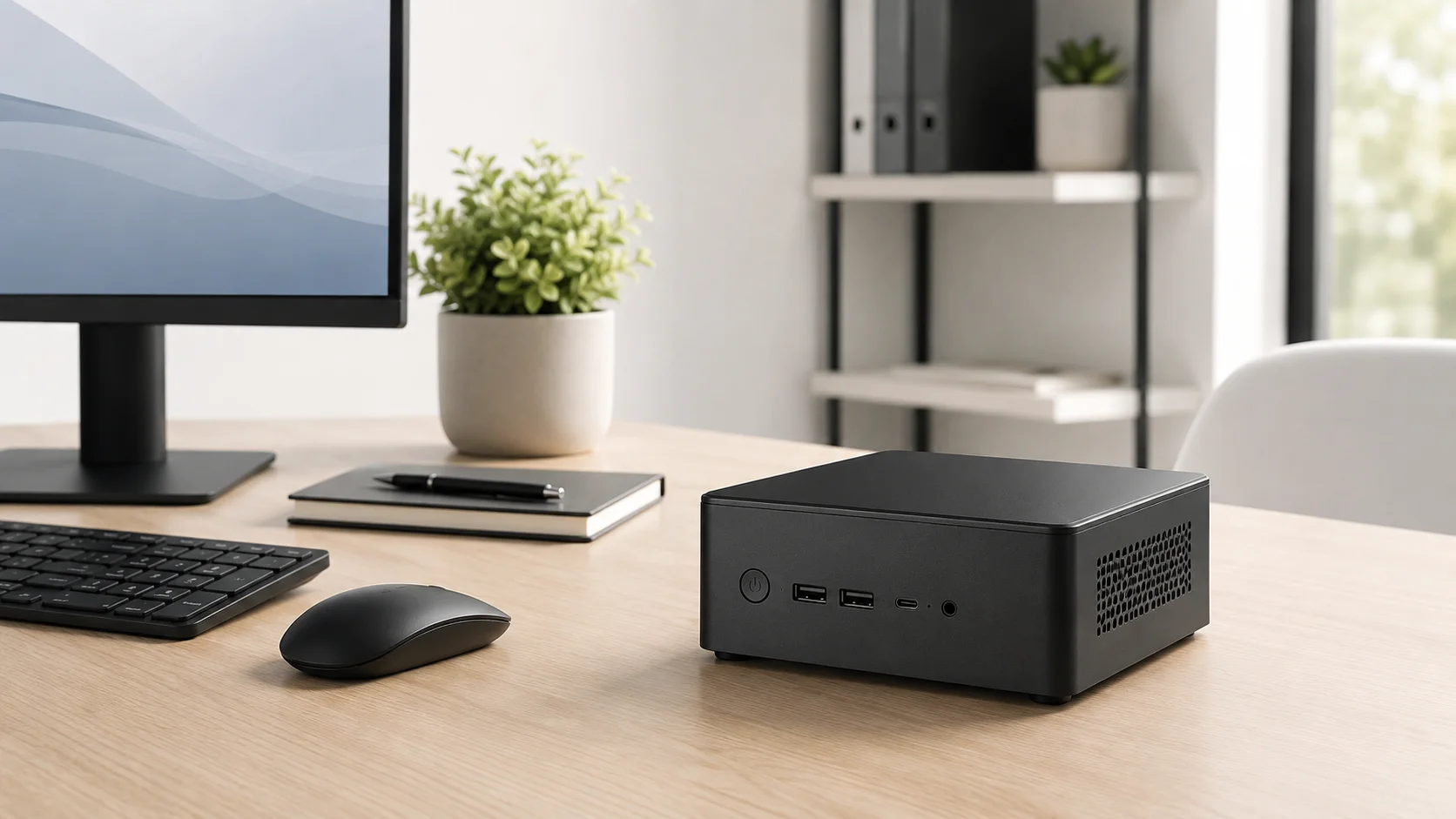
Looking for the best mini PC for a Jellyfin server? Compare Intel N100 and used Core i5 options, Quick Sync, RAM, SSD and low-power requirements.
Jellyfin beginner path
New to Jellyfin? Follow this order.
These guides form the SmallGrid Jellyfin path: install it, fix folder access, solve empty libraries, reduce unnecessary transcoding, then choose the right mini PC.
Printable helper
Prefer to work through this step by step?
Download the matching checklist and tick off the common causes while you work through the guide.
Mini PCs and upgrades worth comparing
Use these as current-price comparison points after deciding whether you need Direct Play only or hardware transcoding.
A useful low-power baseline when comparing newer budget mini PCs.
Useful for comparing used-business-style hardware with Quick Sync support.
Goal
Choose the best mini PC for your Jellyfin server without overbuying. For a low-cost home server, compare an Intel N100-class mini PC with a refurbished 8th-generation or newer Intel Core model. The right choice depends on whether your clients Direct Play or need the server to transcode video.
A good Jellyfin mini PC should be:
- quiet
- low-power
- reliable
- cheap to run
- capable of direct play
- capable of hardware transcoding if you need it
The mistake is buying only by CPU benchmark score. Jellyfin performance depends more on your playback situation than on raw power.
If you want the broader baseline before choosing a mini PC, read Jellyfin System Requirements: Minimum and Recommended Specs.
The default recommendation
For most beginner Jellyfin home servers, aim for:
CPU:       Intel 8th gen Core i3/i5 or newer
Graphics:  Intel integrated graphics with Quick Sync
RAM:       8GB minimum, 16GB nicer
Storage:   SSD for the OS, separate storage for media
Network:   Gigabit Ethernet
Power:     low idle power, ideally around 5–15W at idle
This kind of machine is usually enough for:
- one or more local direct-play streams
- basic home server services
- light hardware transcoding
- a small always-on Jellyfin setup
If you are still comparing hardware generally, start with Best Used Mini PCs Under £200 for a Home Server.
First question: direct play or transcoding?
Before choosing specs, work out what Jellyfin will actually do.
Direct play
Direct play means the client can play the file as-is.
In that case, the server mostly sends the file across the network. CPU use is low, and even modest hardware can work well.
For direct play, the mini PC needs:
Reliable storage
Gigabit networking
Enough CPU for the Jellyfin interface and scanning
Good idle power
It does not need a monster CPU.
Transcoding
Transcoding means Jellyfin converts the file during playback.
This can happen because of:
- unsupported video codec
- unsupported audio codec
- unsupported subtitles
- remote streaming quality limits
- browser playback limitations
- 4K files on weak clients
For transcoding, hardware acceleration matters. For most small Jellyfin boxes, that means Intel Quick Sync.
For the basics, read Jellyfin Direct Play vs Transcoding: What Actually Matters.
Best CPU choice for a Jellyfin mini PC
For SmallGrid-style builds, Intel is usually the easiest recommendation.
Good used mini PC CPU families include:
Intel 8th gen Core i3, i5, i7
Intel 9th gen Core i3, i5, i7
Intel 10th gen Core i3, i5, i7
Intel N100 / N95 / N97 style newer low-power chips
You do not need an i7 for a basic Jellyfin server.
A used business mini PC with an Intel i5 is often the sweet spot because it gives enough CPU headroom while staying cheap and efficient.
Examples of useful machine types:
Dell OptiPlex Micro
Lenovo ThinkCentre Tiny
HP EliteDesk Mini
HP ProDesk Mini
Intel NUC-style mini PCs
The exact model matters less than the combination of Intel iGPU, low idle power, SSD, and enough RAM.
Intel Quick Sync matters more than you think
Intel Quick Sync is the integrated video hardware built into many Intel CPUs.
For Jellyfin, it can handle video transcoding more efficiently than doing everything on the CPU.
That matters because a low-power mini PC may struggle with software transcoding, especially for higher-resolution files.
A practical recommendation:
If you expect transcoding, buy Intel with Quick Sync.
If you expect direct play only, almost any decent mini PC can work.
For setup details, see Jellyfin Hardware Transcoding on Ubuntu: Intel Quick Sync and VAAPI.
How much RAM does Jellyfin need?
Jellyfin itself does not need huge RAM for a small library.
A practical guide:
| RAM | Good for |
|---|---|
| 4GB | Possible, but tight if the server does anything else |
| 8GB | Good baseline for Jellyfin and a few small services |
| 16GB | Better if using Docker, extra services, or Proxmox |
| 32GB+ | Usually unnecessary for a simple Jellyfin-only box |
For most people, 8GB is fine. 16GB is more comfortable.
If you plan to run Proxmox and multiple containers or VMs, 16GB should be the practical starting point.
Storage: SSD for the system, media somewhere sensible
Use an SSD for:
Operating system
Jellyfin config
Jellyfin cache
metadata
small databases
This keeps the system responsive.
For media, you have options:
USB hard drive
internal SATA SSD/HDD if the mini PC supports it
NAS share
separate storage server
MergerFS-style pool on a Linux server
A simple layout:
/              SSD for Ubuntu and Jellyfin
/mnt/media     media disk or mounted storage
If Jellyfin cannot see your media after adding storage, it is usually a path or permissions issue. Use Jellyfin Library Not Showing Files: Fix Media Scans, Paths, and Permissions.
Network: use Ethernet if possible
For a Jellyfin server, wired Ethernet is better than Wi-Fi.
Aim for:
1Gb Ethernet minimum
2.5Gb Ethernet nice but not essential
Wi-Fi only if you have no better option
Direct play of large files depends on steady throughput. Wi-Fi can work, but it adds another variable when troubleshooting buffering.
For a beginner setup, plug the mini PC into the router or switch with Ethernet and remove that problem from the list.
Power use: idle matters more than peak
A Jellyfin home server is usually idle most of the day.
That means idle power matters more than peak power.
Good mini PCs can idle very low compared with old desktops or gaming PCs.
Things that affect power use:
- CPU generation
- BIOS power settings
- number of drives
- USB disks
- background services
- whether the server is transcoding
- whether disks sleep or stay awake
Measure it instead of guessing. See How to Measure Homelab Power Usage Properly.
What specs for 1080p Jellyfin?
For a simple 1080p Jellyfin server:
Intel 8th gen i3/i5 or newer
8GB RAM
SSD boot drive
Gigabit Ethernet
Ubuntu Server or another lightweight Linux setup
This is usually enough if your clients direct play most files.
If you need occasional transcoding, pick an Intel model with Quick Sync and configure hardware acceleration carefully.
What specs for 4K Jellyfin?
4K is where people overestimate what a cheap server should do.
The best 4K Jellyfin setup is:
Client direct plays the 4K file
Server does not transcode 4K in real time
Subtitles do not force burn-in
Network is wired and stable
For 4K, avoid relying on software transcoding.
Better options:
- use a client that supports the file directly
- keep a 1080p version for remote playback
- use compatible audio and subtitle formats
- avoid burning subtitles into 4K video
- enable hardware transcoding only after testing
For format choices, read Best File Formats for Jellyfin Direct Play: Avoid Unnecessary Transcoding.
Specs that sound important but usually are not
Huge CPU count
A simple Jellyfin server does not need lots of CPU cores unless you are also running many other services.
Gaming GPU
A gaming GPU is usually not needed for a small Jellyfin box. It adds cost, heat, noise, and power draw.
64GB RAM
Useful for some homelab workloads, but not needed for a basic Jellyfin server.
10Gb networking
Nice in a bigger storage setup. Not necessary for most small Jellyfin builds.
Good buying checklist
Before buying a used mini PC for Jellyfin, check:
Intel CPU with integrated graphics
8GB RAM minimum
16GB RAM if running Proxmox or extra services
SSD included or easy to add
Gigabit Ethernet
quiet operation
low idle power reputation
USB 3 ports if using external drives
space for internal storage if needed
power adapter included
BIOS not locked down
Avoid machines where the seller cannot confirm the CPU model or power adapter.
Example beginner builds
Cheapest sensible Jellyfin box
Used Intel 8th gen mini PC
8GB RAM
256GB SSD
External USB media drive
Ubuntu Server
Good for basic direct play and learning.
Better small home server
Used Intel 8th–10th gen i5 mini PC
16GB RAM
512GB SSD
External or NAS media storage
Ubuntu Server or Proxmox
Good for Jellyfin plus a few extra services.
Newer low-power option
Intel N100-style mini PC
16GB RAM
SSD
External/NAS storage
Linux
Good for very low power use, direct play, and efficient small-server duties.
What I would buy first
For most beginners, I would look for:
Used Dell/Lenovo/HP business mini PC
Intel 8th gen i5 or newer
16GB RAM if the price difference is small
SSD included
Gigabit Ethernet
That is boring in the best way. Boring is good for a server that you want to leave alone.
Next steps
Useful related guides:
- Jellyfin System Requirements: Minimum and Recommended Specs
- Best Used Mini PCs Under £200 for a Home Server
- Jellyfin on a Mini PC: Build a Quiet Low-Power Media Server
- Jellyfin Direct Play vs Transcoding: What Actually Matters
- Best File Formats for Jellyfin Direct Play
- How to Measure Homelab Power Usage Properly
Recap
The best mini PC for Jellyfin is not necessarily the fastest one.
For most small home servers, the winning combination is:
Intel mini PC
Quick Sync-capable iGPU
8–16GB RAM
SSD for the system
wired Ethernet
low idle power
media stored somewhere reliable
Prioritise direct play first. Add hardware transcoding only when you know you need it.
Downloadable checklist
Save the matching PDF checklist
Use these while working through the guide, or keep a copy for the next time the same problem appears.
Jellyfin Mini PC Buying Checklist
Check CPU, Quick Sync, RAM, SSD, networking, storage, and power use before buying.
Download PDFMore downloads are available in the SmallGrid checklists section.
Next guide
What to read next
Continue the setup path with these closely related guides.
Budget Mini PC Home Lab: Picking a Tiny Box That Can Actually Homelab
How to choose a used or budget mini PC for a small efficient home lab, Jellyfin, Docker, Proxmox, backups, and low-power home server use.
Jellyfin on a Mini PC: Build a Quiet Low-Power Media Server
Build a quiet Jellyfin media server on a mini PC with sensible hardware, storage, direct play, backups, and low-power home lab defaults.
Jellyfin Direct Play vs Transcoding: What Is the Difference?
Why is Jellyfin transcoding instead of Direct Playing? Compare Direct Play, Direct Stream and transcoding, CPU usage, quality and common triggers.
Jellyfin guide cluster
More Jellyfin fixes and setup guides
These guides link the main Jellyfin setup, permissions, remote access, direct play, and hardware topics together.
Jellyfin 12 Upgrade Guide: 10 Things to Check Before You Update
Prepare Jellyfin 10.10 or 10.11 for version 12: verify backups, plugins, Docker or Ubuntu packages, migrations, permissions, playback and rollback.
How to Reduce Jellyfin Server Power Use on Ubuntu
Reduce Jellyfin server electricity use on Ubuntu by measuring idle and playback power, avoiding unnecessary transcoding, checking background load, storage, CPU behaviour and reboot health.
Give Jellyfin Access to Media Folders on Ubuntu
Fix Jellyfin permission denied errors on Ubuntu. Test the service user, find blocked parent folders, apply safe ACLs, verify inheritance, and check mounted-drive options.
Jellyfin Library Not Showing Files? 8 Checks That Fix It
Fix a Jellyfin library that is empty or missing media. Check mounts, Linux permissions, Docker paths, library folders, naming, scans and logs in the correct order.
Jellyfin Docker Permissions: Fix Media Folder Access and UID/GID Errors
Fix Jellyfin Docker permission denied errors. Check bind mounts, container paths, UID and GID values, read-only media access, active mounts, and file visibility step by step.
Jellyfin Direct Play vs Transcoding: What Is the Difference?
Why is Jellyfin transcoding instead of Direct Playing? Compare Direct Play, Direct Stream and transcoding, CPU usage, quality and common triggers.