


Quick answer
What this guide helps you do
Fix Jellyfin subtitle burn-in and unnecessary transcoding. Learn which subtitle formats Direct Play, why PGS causes problems, and how to test client support.
Jellyfin beginner path
New to Jellyfin? Follow this order.
These guides form the SmallGrid Jellyfin path: install it, fix folder access, solve empty libraries, reduce unnecessary transcoding, then choose the right mini PC.
Quick answer
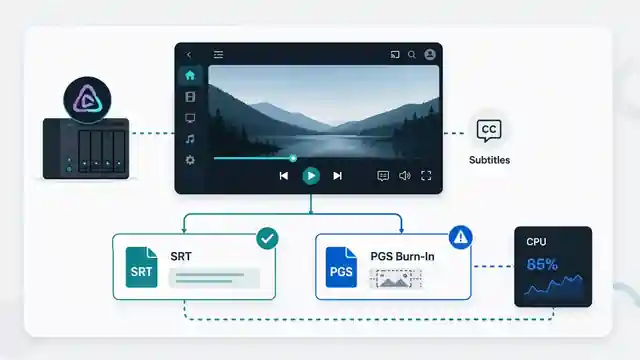
Subtitles cause Jellyfin to transcode when the playback client cannot render the selected subtitle track. Jellyfin must then burn the subtitles into the video, which requires creating new video frames.
Test this first:
- Play the file with subtitles off.
- Check the active session in the Jellyfin dashboard.
- Turn subtitles on.
- Check whether the session changes from Direct Play to Transcoding.
External SRT subtitles are usually the safest format. Image-based formats such as PGS often force Jellyfin to burn subtitles into the video, which requires full video transcoding.
Jellyfin 12 note: subtitle configuration has moved from server-wide settings to per-library settings. If you are following an older guide and cannot find a global subtitle option, open the settings for the affected library instead.
Why subtitles cause transcoding
Subtitles can be either text-based or image-based.
Text-based subtitles contain characters that the client renders during playback. Image-based subtitles contain pictures that must be overlaid onto the video.
When the client cannot render the subtitle track itself, Jellyfin may burn the subtitles into every video frame. That forces video transcoding even when the video and audio would otherwise Direct Play.
Common subtitle formats:
| Format | Type | Typical result |
|---|---|---|
| SRT | Text | Best compatibility |
| WebVTT | Text | Good browser support |
| ASS/SSA | Styled text | May transcode on limited clients |
| PGS | Image | Often requires burn-in |
| VobSub | Image | Often requires burn-in |
How to confirm subtitle burn-in
Open the Jellyfin dashboard while the file is playing.
Look for a transcode reason such as:
SubtitleCodecNotSupported
Subtitle burn-in required
ContainerBitrateExceedsLimit
The exact wording can vary by client and Jellyfin version.
Compare these two tests:
Subtitles off: Direct Play
Subtitles on:  Transcoding
That confirms the subtitle track is the trigger.
Use external SRT subtitles
External SRT files are widely supported and easy to manage.
Use matching names:
Film Name (2026).mkv
Film Name (2026).en.srt
For television:
Show Name - S01E01.mkv
Show Name - S01E01.en.srt
Place the subtitle file beside the video and rescan the library if it does not appear.
Try a different client
A file can transcode in a browser but Direct Play in a native Jellyfin app.
Test the same file on:
- Jellyfin Media Player
- Android TV
- Apple TV
- a smart-TV app
- a phone or tablet app
If only one client burns the subtitles in, the server and file may be fine. The limitation is client-side subtitle support.
Convert PGS subtitles to SRT
PGS subtitles are image-based. Converting them to SRT can avoid burn-in, but OCR is required because the images must be turned into text.
Tools such as Subtitle Edit can perform OCR and export SRT files.
Always proofread the result. OCR can misread punctuation, names, and timing.
Keep the original PGS track when accuracy matters, but add an SRT option for clients that cannot render PGS directly.
Check audio and video too
A subtitle track may not be the only reason Jellyfin is transcoding.
Check the dashboard for:
- unsupported video codec
- unsupported audio codec
- bitrate limits
- resolution limits
- container incompatibility
Use How to Check Why Jellyfin Is Transcoding for a complete diagnosis.
Best subtitle setup for Direct Play
A practical compatibility target is:
Primary subtitle: External SRT
Optional subtitle: Original PGS or ASS track
Client: Native Jellyfin app where possible
This keeps the original subtitle option while providing a lightweight text-based alternative.
Related guides
- How to Check Why Jellyfin Is Transcoding
- Jellyfin Direct Play vs Transcoding
- Best Video Format for Jellyfin Direct Play
- Jellyfin Direct Stream vs Direct Play
Recap
If subtitles trigger transcoding, test with subtitles disabled, inspect the transcode reason, and try an external SRT track.
PGS and VobSub are common causes of burn-in. A better client or a text-based subtitle track can often restore Direct Play without changing the video file.
Jellyfin guide cluster
More Jellyfin fixes and setup guides
These guides link the main Jellyfin setup, permissions, remote access, direct play, and hardware topics together.
Jellyfin 12 Upgrade Guide: 10 Things to Check Before You Update
Prepare Jellyfin 10.10 or 10.11 for version 12: verify backups, plugins, Docker or Ubuntu packages, migrations, permissions, playback and rollback.
How to Reduce Jellyfin Server Power Use on Ubuntu
Reduce Jellyfin server electricity use on Ubuntu by measuring idle and playback power, avoiding unnecessary transcoding, checking background load, storage, CPU behaviour and reboot health.
Give Jellyfin Access to Media Folders on Ubuntu
Fix Jellyfin permission denied errors on Ubuntu. Test the service user, find blocked parent folders, apply safe ACLs, verify inheritance, and check mounted-drive options.
Jellyfin Library Not Showing Files? 8 Checks That Fix It
Fix a Jellyfin library that is empty or missing media. Check mounts, Linux permissions, Docker paths, library folders, naming, scans and logs in the correct order.
Jellyfin Docker Permissions: Fix Media Folder Access and UID/GID Errors
Fix Jellyfin Docker permission denied errors. Check bind mounts, container paths, UID and GID values, read-only media access, active mounts, and file visibility step by step.
Jellyfin Direct Play vs Transcoding: What Is the Difference?
Why is Jellyfin transcoding instead of Direct Playing? Compare Direct Play, Direct Stream and transcoding, CPU usage, quality and common triggers.