


Quick answer
What this guide helps you do
Understand Jellyfin Direct Stream vs Direct Play, when remuxing happens, how server load changes, how to verify the playback mode, and whether Direct Stream needs fixing.
Jellyfin beginner path
New to Jellyfin? Follow this order.
These guides form the SmallGrid Jellyfin path: install it, fix folder access, solve empty libraries, reduce unnecessary transcoding, then choose the right mini PC.
Quick answer
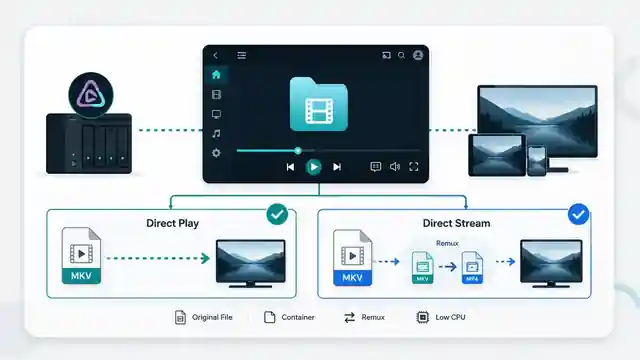
Direct Play sends the original file, container, video, audio, and subtitle streams to the client without repackaging or re-encoding them.
Direct Stream keeps compatible streams but repackages them into a container or delivery format the client accepts. This is often called remuxing.
Direct Stream is usually lightweight and does not reduce video quality. It is not the same as full video transcoding.
If Jellyfin shows Direct Stream, playback is smooth, and server load is low, there may be nothing to fix.
What this guide covers
This guide explains the difference between Direct Play, Direct Stream, audio transcoding, and full video transcoding.
It helps you decide:
- what Jellyfin is doing to the file
- whether video is being re-encoded
- why a compatible file may still Direct Stream
- whether the container, audio, subtitles, or client caused the change
- whether a Direct Stream session needs any action
Use How to Check Why Jellyfin Is Transcoding when you are diagnosing a specific problem session with buffering, high CPU use, subtitle burn-in, or full video conversion.
Use Best Video Format for Jellyfin Direct Play when choosing formats for a new or converted library.
Playback mode comparison
| Playback mode | Container changed? | Video re-encoded? | Audio re-encoded? | Typical server load | Quality change |
|---|---|---|---|---|---|
| Direct Play | No | No | No | Lowest | None |
| Direct Stream | Usually yes | No | Usually no, but it can be | Low | Usually none |
| Audio transcoding | Possibly | No | Yes | Low to moderate | Audio may change |
| Video transcoding | Possibly | Yes | Possibly | Highest | Possible |
The most important distinction is whether the video stream is being re-encoded.
Container repackaging is normally cheap. Real-time video conversion is the expensive part.
Direct Play
Direct Play means the client supports the complete media combination:
- container
- video codec and profile
- audio codec and channel layout
- subtitle format
- resolution
- bitrate
- HDR format, where relevant
- delivery method used by the client
Jellyfin mainly reads the original file and sends it across the network.
This normally gives:
- original video and audio quality
- minimal CPU use
- low power draw
- no temporary video conversion
- the least work for the server
Example:
Container: MP4
Video: H.264
Audio: AAC stereo
Subtitles: External SRT
Client: Browser with full support for the combination
Result: Direct Play
Direct Play is the ideal outcome, but it is not necessary to force every file and client combination into this mode.
Direct Stream
Direct Stream normally occurs when the client supports the media streams but not the original container or delivery format.
Example:
Container: MKV
Video: H.264 supported
Audio: AAC supported
Subtitles: none
Client: Browser that does not accept the MKV container directly
Result: Direct Stream into a compatible container
Jellyfin extracts the compatible streams and places them into a different container without fully re-encoding the video.
This process is often called:
remuxingThe data still has to be read, packaged, and sent, but the server avoids the heavy work of decoding and re-encoding every video frame.
SmallGrid verification method
Use the same file, client, quality setting, and playback scene for every comparison.
Record:
Client:
Connection: local or remote
Container:
Video codec:
Audio codec:
Subtitle format:
Selected quality:
Playback mode:
Reported conversion reason:
CPU use before playback:
CPU use during playback:
Then change only one variable.
Useful one-variable tests are:
- disable subtitles
- select another audio track
- set local quality to Original
- test another client
- test an MP4 version of the same H.264/AAC content
This separates harmless remuxing from real conversion problems.
How to check whether Jellyfin is Direct Playing or Direct Streaming
While the file is playing:
- Open Jellyfin in a browser.
- Open Dashboard.
- Find the active playback session.
- Read the playback mode.
- Open any available playback or conversion details.
- Record the stated reason.
The session may show:
Direct Play
Direct Stream
Transcoding
Do not rely only on the label. Check whether the video, audio, subtitles, or container are being changed.
A session described as Direct Stream may still include audio conversion. The server cost is then higher than a pure remux, but usually far below full video transcoding.
Why Jellyfin uses Direct Stream
Common causes include:
| Cause | What Jellyfin may do | Likely impact |
|---|---|---|
| Container not accepted by client | Remux into another container | Low |
| Browser delivery limitation | Repackage for browser-compatible streaming | Low |
| Audio codec unsupported | Keep video, convert audio | Low to moderate |
| Subtitle delivery unsupported | Change subtitle handling or trigger burn-in | Low to high, depending on format |
| Client requires segmented delivery | Repackage into streaming segments | Low |
| Original file has unusual stream layout | Reorder or repackage streams | Usually low |
MKV files often Direct Stream in browser clients because the browser accepts the video and audio codecs but not the MKV container in that playback path.
That does not automatically mean the file is badly encoded.
Container support: MKV vs MP4
MP4 is widely supported by browsers, televisions, phones, and streaming devices.
MKV is more flexible for:
- multiple audio tracks
- multiple subtitle tracks
- chapters
- specialist audio formats
- mixed media streams
A client that cannot accept MKV may still play the H.264 or HEVC video and compatible audio through Direct Stream.
Example:
Original file: MKV
Video: H.264
Audio: AAC
Client accepts: MP4 + H.264 + AAC
Jellyfin action: remux MKV streams into MP4-compatible delivery
Video quality: unchanged
Converting an entire library from MKV to MP4 solely to remove harmless Direct Stream sessions is usually unnecessary.
Audio conversion during Direct Stream
A compatible video stream can be copied while the audio is converted.
Example:
Video: H.264 supported
Audio: DTS unsupported
Container: MKV unsupported
Result: video copied, audio converted, streams repackaged
This may still feel lightweight compared with video transcoding because the server is not re-encoding the video.
Try another audio track before converting the file.
Common compatibility tracks include:
- AAC stereo
- AC-3 5.1
Original tracks such as DTS-HD, TrueHD, or specialist multichannel formats can remain in the file alongside a compatible track.
Subtitles can change the result completely
Subtitle behaviour depends on both the subtitle format and the client.
Text subtitles such as SRT are often delivered without video conversion.
Image-based subtitles such as PGS or VobSub may require burn-in when the client cannot render them directly.
Burn-in changes the problem from lightweight repackaging to video transcoding because Jellyfin must render the subtitle image into each video frame.
Test:
- play the file with subtitles enabled
- record the playback mode
- disable subtitles
- replay the same scene
If Direct Stream changes to full transcoding only when subtitles are enabled, the container is not the main issue.
See Jellyfin Subtitles Causing Transcoding.
Does Direct Stream reduce quality?
A pure remux does not normally change video or audio quality because the streams are copied rather than re-encoded.
Quality can change when:
- audio is transcoded
- video is transcoded
- resolution is reduced
- bitrate is reduced
- HDR is tone mapped
- subtitles are burned into the video
Do not assume every Direct Stream session is lossless without checking the stream details. Confirm whether Jellyfin is copying or converting each stream.
Does Direct Stream use much CPU?
Pure remuxing is normally lightweight.
The server still performs work:
- reads the source file
- selects the required streams
- writes a new delivery container or segments
- sends data across the network
But it avoids decoding and re-encoding the video.
On a low-power home server, a single Direct Stream session should usually be easy to handle.
Investigate further when:
- CPU use rises sharply
- the server load stays high throughout playback
- the session buffers despite a healthy network
- multiple Direct Stream sessions cause disk or network saturation
- logs show audio or video encoding
- temporary transcode storage fills unexpectedly
When Direct Stream is not the real problem
Direct Stream is often blamed for symptoms caused by something else.
| Symptom | More likely cause |
|---|---|
| Playback buffers at high bitrate | Network throughput, Wi-Fi, remote upload speed, or client limit |
| CPU use is very high | Audio/video conversion, subtitle burn-in, or another process |
| Playback fails immediately | Client limitation, corrupt stream, unsupported profile, or FFmpeg error |
| Server disk fills | Transcode cache, logs, downloads, or temporary files |
| Only one client has problems | Client capability or client settings |
| Remote playback is worse than local | Upload speed or remote quality limit |
Read the active-session details before converting files or replacing hardware.
Worked diagnosis: MKV Direct Streams in a browser
Observed file:
Container: MKV
Video: H.264 1080p
Audio: AAC stereo
Subtitles: none
Quality: Original
Test results:
Browser client: Direct Stream
Jellyfin Media Player: Direct Play
CPU use in both tests: low
Video quality: unchanged
Buffering: none
Diagnosis:
Video codec problem: no
Audio codec problem: no
Container compatibility difference: yes
Full file conversion required: no
Server upgrade required: no
The browser path required remuxing, while the native player accepted the MKV file directly.
This is a normal and acceptable result.
Should you try to force Direct Play?
Use this decision table:
| Situation | Recommended action |
|---|---|
| Direct Stream is smooth and server load is low | Leave it alone |
| Only the container changes | Leave it alone unless there is a specific compatibility reason |
| Audio converts but playback is smooth | Consider a compatible audio track, but conversion may be acceptable |
| Subtitles force video transcoding | Use text subtitles or a client that supports the subtitle format |
| Remote quality limit causes video conversion | Review bandwidth and client quality settings |
| Several clients repeatedly require video transcoding | Standardise formats or improve client choice |
| Playback fails or buffers | Diagnose logs, network, and stream compatibility |
Direct Play is desirable, but eliminating every Direct Stream session is not a useful goal by itself.
How to encourage Direct Play
You can improve the chance of Direct Play by:
- using a native Jellyfin application instead of a limited browser path
- setting local playback quality to Original
- using broadly supported containers
- choosing H.264 for maximum compatibility
- confirming HEVC support before relying on it
- including AAC or AC-3 compatibility audio
- using SRT subtitles where practical
- testing the actual client rather than relying only on a codec list
For format planning, read Best Video Format for Jellyfin Direct Play.
Common mistakes
Converting every MKV file
MKV is not automatically a problem. A lightweight remux may be the best outcome for browser playback.
Treating Direct Stream as full transcoding
Check whether the video stream is copied or encoded.
Ignoring audio and subtitles
The container may be compatible enough while a selected audio or subtitle track triggers conversion.
Testing different files on different clients
Use the same file and scene so the result is comparable.
Chasing a label instead of a playback problem
If playback is smooth, quality is unchanged, and server load is low, the session may already be working correctly.
Related guides
- How to Check Why Jellyfin Is Transcoding
- Jellyfin Direct Play vs Transcoding
- Jellyfin Subtitles Causing Transcoding
- Best Video Format for Jellyfin Direct Play
- Jellyfin Hardware Transcoding on Ubuntu
Recap
Direct Play sends the original file and streams unchanged.
Direct Stream normally keeps compatible video and audio streams but repackages them into a container or delivery format the client accepts.
For most home Jellyfin servers, pure Direct Stream is a lightweight and acceptable fallback. Investigate only when playback, quality, server load, audio conversion, subtitles, or network behaviour shows a real problem.
Jellyfin guide cluster
More Jellyfin fixes and setup guides
These guides link the main Jellyfin setup, permissions, remote access, direct play, and hardware topics together.
Jellyfin 12 Upgrade Guide: 10 Things to Check Before You Update
Prepare Jellyfin 10.10 or 10.11 for version 12: verify backups, plugins, Docker or Ubuntu packages, migrations, permissions, playback and rollback.
How to Reduce Jellyfin Server Power Use on Ubuntu
Reduce Jellyfin server electricity use on Ubuntu by measuring idle and playback power, avoiding unnecessary transcoding, checking background load, storage, CPU behaviour and reboot health.
Give Jellyfin Access to Media Folders on Ubuntu
Fix Jellyfin permission denied errors on Ubuntu. Test the service user, find blocked parent folders, apply safe ACLs, verify inheritance, and check mounted-drive options.
Jellyfin Library Not Showing Files? 8 Checks That Fix It
Fix a Jellyfin library that is empty or missing media. Check mounts, Linux permissions, Docker paths, library folders, naming, scans and logs in the correct order.
Jellyfin Docker Permissions: Fix Media Folder Access and UID/GID Errors
Fix Jellyfin Docker permission denied errors. Check bind mounts, container paths, UID and GID values, read-only media access, active mounts, and file visibility step by step.
Jellyfin Direct Play vs Transcoding: What Is the Difference?
Why is Jellyfin transcoding instead of Direct Playing? Compare Direct Play, Direct Stream and transcoding, CPU usage, quality and common triggers.