


Quick answer
What this guide helps you do
Choose a low-cost Jellyfin client for reliable Direct Play. Compare smart-TV apps, streaming devices, mini PCs, browsers, codec support, subtitles, networking, and 4K requirements.
Jellyfin beginner path
New to Jellyfin? Follow this order.
These guides form the SmallGrid Jellyfin path: install it, fix folder access, solve empty libraries, reduce unnecessary transcoding, then choose the right mini PC.
Jellyfin clients worth comparing
These are useful UK search links for the client types discussed below. Check codec, subtitle, audio and networking support for the exact model before buying.
Compare maintained TV platforms, codec support, networking, and app availability before choosing.
Check compatibility and port-speed limits for your exact streaming device.
A more flexible option when a streaming device cannot handle your formats or subtitles.
Quick answer
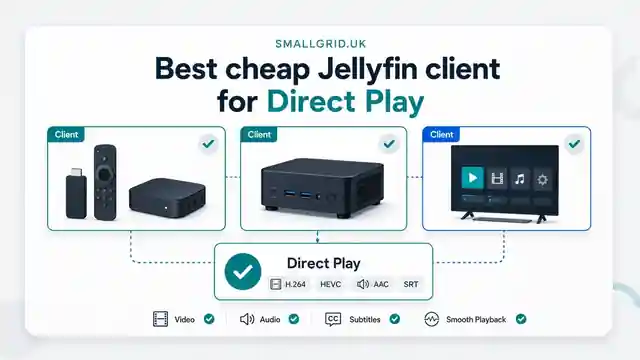
For most people, the best cheap Jellyfin client is a dedicated television streaming device with a maintained Jellyfin app, reliable HEVC decoding, strong Wi-Fi or Ethernet, and acceptable subtitle support.
Use this order before spending more:
- test the Jellyfin app already available on the television
- try a low-cost Android TV, Google TV, or Fire TV-class streaming device
- use a second-hand mini PC when you need maximum format flexibility, wired networking, or desktop Jellyfin Media Player
The cheapest device is not the one with the lowest purchase price. It is the one that plays your real library without forcing the server to transcode video.
A better client can reduce buffering, CPU use, power consumption, and troubleshooting more effectively than upgrading the Jellyfin server.
What this guide covers
This is a client-selection guide.
It helps you decide:
- whether the television app you already own is good enough
- when a cheap streaming device is the best choice
- when a used mini PC is worth the extra cost and power use
- which video, audio, subtitle, HDR, and network features matter
- how to test a client before keeping it
- how to separate harmless Direct Stream from expensive video transcoding
It does not claim that every device in the same product family behaves identically. Hardware revisions, operating-system updates, Jellyfin app versions, television capabilities, and audio equipment can all change the result.
Use How to Check Why Jellyfin Is Transcoding when a specific file fails.
Use Best Video Format for Jellyfin Direct Play when deciding whether to change the library rather than the client.
SmallGrid recommendation by use case
| Use case | Best starting point | Why | Main limitation |
|---|---|---|---|
| Mostly 1080p H.264 with AAC or AC3 | Existing smart-TV app | Costs nothing and may already Direct Play everything important | Television software and subtitle support may be weak |
| Mixed 1080p and HEVC library | Low-cost dedicated streaming device | Simple remote-control interface and usually broader codec support than a browser | Audio passthrough and high-bitrate networking vary |
| 4K HEVC Main 10 and HDR | Modern 4K streaming device with verified support | Lower power and easier to use than a PC | “4K” branding does not guarantee every HDR, audio, or subtitle format |
| Difficult subtitles or specialist audio | Used mini PC with Jellyfin Media Player | Broad software flexibility and easy wired networking | Higher power use and less television-friendly control |
| Desk, laptop, or occasional playback | Native desktop app | Better media support than browser-only playback | Not a simple living-room appliance |
| Remote family member with simple library | Maintained streaming platform | Familiar remote and predictable app access | Remote bitrate and home upload speed may still force conversion |
Practical winner
For a typical 1080p or mixed 1080p/4K home library, a low-cost dedicated streaming device is usually the best balance of price, power use, app usability, and Direct Play capability.
A used mini PC is the better value only when you genuinely need its flexibility.
Start with the device you already own
The television’s built-in Jellyfin app costs nothing extra, so test it first.
Use the same files you would use to assess a new device. Do not reject the television app because one unusual file transcodes.
The built-in app is good enough when:
- your common files Direct Play
- menus are responsive enough
- subtitles render correctly
- audio reaches the television or receiver as expected
- high-bitrate files do not buffer
- the app is still maintained on that television platform
Add another device when:
- HEVC or 10-bit video repeatedly transcodes
- PGS or styled subtitles cause major problems
- the app is slow, unstable, or unavailable
- network performance is unreliable
- audio support is too limited
- the television is no longer receiving useful software updates
Some televisions use 100 Mbps Ethernet ports. Good Wi-Fi can outperform that connection for high-bitrate local files, but Wi-Fi quality depends heavily on distance, interference, and access-point placement.
Cheap streaming devices
Android TV, Google TV, and Fire TV-class devices are often the simplest low-cost Jellyfin clients.
Advantages
- low purchase cost
- very low idle power use
- remote-control friendly
- simple living-room interface
- maintained app stores on supported models
- broad support for common H.264 and HEVC media
- easy replacement if the platform becomes outdated
Limitations to check
- Wi-Fi quality
- Ethernet availability and adapter support
- HEVC Main 10 support
- AV1 support where required
- HDR formats supported by both device and television
- audio passthrough behaviour
- support for multichannel AAC, AC3, EAC3, DTS, TrueHD, or other library audio
- PGS, VobSub, ASS, or SSA subtitle behaviour
- storage space and interface responsiveness
- whether the specific Jellyfin app exposes the playback options you need
Do not buy from a specification headline alone. “4K”, “HDR”, or “Dolby” branding does not prove that your exact combination of container, codec, audio track, subtitle track, and application will Direct Play.
Used mini PC as a Jellyfin client
A used mini PC can be the most compatible low-cost client, particularly when connected by HDMI and Ethernet.
Advantages
- Jellyfin Media Player or another native desktop client
- wired Ethernet as standard on most models
- broad software-decoding fallback
- easier codec and playback diagnostics
- flexible display, audio, and refresh-rate settings
- can also run browser, music, emulation, or light desktop tasks
Disadvantages
- costs more than a basic streaming stick
- higher idle power use
- keyboard, mouse, remote, or HDMI-CEC setup may be less convenient
- operating-system maintenance is required
- older hardware may not decode 4K HEVC Main 10 efficiently
- HDR support on desktop operating systems can be inconsistent
Minimum practical checks
For 1080p playback, verify:
- H.264 hardware decoding
- HDMI output at the television’s native resolution
- stable Ethernet or Wi-Fi
- quiet operation
For 4K playback, also verify:
- HEVC Main 10 hardware decoding
- HDMI version and supported refresh rate
- HDR requirements
- audio-output requirements
- whether the selected operating system and client handle those features correctly
A mini PC is not automatically a better television client. It is better when its flexibility solves a real compatibility problem.
Browser playback is not the baseline
Browsers are useful for administration and quick testing, but they are not always the best measure of Jellyfin client compatibility.
A browser may:
- reject an MKV container while supporting the streams inside it
- lack support for a video codec available to a native app
- trigger audio conversion
- handle subtitles differently
- Direct Stream a file that a native app Direct Plays
A file that transcodes in a browser may play efficiently in Jellyfin Media Player or a television app.
Do not upgrade the server based only on browser playback.
Codec and feature checklist
Video
| Library content | Client capability to verify | Consequence when unsupported |
|---|---|---|
| H.264 8-bit | H.264 hardware decoding | Video transcoding on weak or unusual clients |
| HEVC/H.265 | HEVC hardware decoding | Video transcoding |
| HEVC Main 10 | 10-bit HEVC decoding | Common 4K files may transcode |
| AV1 | AV1 hardware or efficient software decoding | AV1 files may transcode or stutter |
| 4K high bitrate | Decoder performance plus network throughput | Buffering or quality reduction |
| HDR | Matching device, app, display, and HDR-format support | Tone mapping, washed-out output, or conversion |
Audio
| Audio need | What to check | Common outcome when unsupported |
|---|---|---|
| Television speakers | AAC, AC3, or EAC3 decoding | Audio-only transcoding |
| Soundbar or receiver | Passthrough support and connection path | Audio conversion or loss of desired format |
| DTS or lossless audio | Device, application, television, and receiver chain | Audio transcoding despite compatible video |
| Multiple audio tracks | Easy track selection in the client | User selects an incompatible default track |
Audio-only transcoding is normally less demanding than video transcoding. It may be acceptable if playback is stable and quality meets your needs.
Subtitles
| Subtitle type | Typical compatibility | Risk |
|---|---|---|
| External SRT | Broadest | Lowest risk of video burn-in |
| Embedded SRT | Usually good | Client-dependent styling or delivery |
| ASS/SSA | Varies | Styled subtitles may require burn-in |
| PGS | Varies significantly | Can force full video transcoding |
| VobSub | Varies | Can force burn-in |
Subtitle support is often the difference between a cheap client that works and one that unexpectedly forces video transcoding.
Network requirements
Codec support does not help if the client cannot receive the file quickly enough.
1080p
Most ordinary home networks can carry typical 1080p files, but weak 2.4 GHz Wi-Fi may still buffer.
4K
High-bitrate 4K files can produce short throughput peaks well above their average bitrate.
Check:
- whether the device uses 2.4 GHz or 5 GHz Wi-Fi
- signal strength at the television
- interference from neighbouring networks
- Ethernet port speed
- USB Ethernet-adapter limits
- access-point placement
- whether playback buffers at the same scene repeatedly
Use wired Ethernet when it is reliable and fast enough. Use strong 5 GHz or newer Wi-Fi when the television’s Ethernet port is the bottleneck.
Do not treat an internet speed test as proof of local network performance. Jellyfin playback inside the home may never leave the local network.
Price bands rather than fixed prices
Device prices and discounts change too frequently for a fixed number to remain reliable.
Use these broad bands when comparing options:
| Budget band | Likely option | What to expect |
|---|---|---|
| No additional spend | Existing smart-TV, console, phone, tablet, or computer app | Best first test; capability depends on existing hardware |
| Lowest-cost new device | Basic streaming stick or box | Good for common 1080p media; verify HEVC, Wi-Fi, and app support |
| Mid-budget streaming device | Faster 4K streaming box or stick | Better interface, broader decoding, and potentially stronger networking |
| Low-cost used hardware | Second-hand mini PC | Best flexibility, but higher power use and setup effort |
Record the actual price and date when evaluating a device. A model that is poor value at full price may become sensible during a discount, while a discontinued model may become expensive or unsupported.
SmallGrid client test set
Use one consistent set of files so results can be compared across devices.
Recommended test set:
- 1080p H.264 with AAC in MP4
- 1080p H.264 with AC3 in MKV
- 1080p HEVC Main 10 in MKV
- 4K HEVC Main 10 HDR sample
- external SRT subtitles
- embedded ASS or SSA subtitles
- embedded PGS subtitles
- one high-bitrate local file
For each file, record:
Device:
Operating system or platform:
Jellyfin app:
Connection: Ethernet / Wi-Fi
Playback mode: Direct Play / Direct Stream / Transcoding
Video conversion: yes / no
Audio conversion: yes / no
Subtitle burn-in: yes / no
Buffering: yes / no
Reported reason:
Approximate server CPU use:
Change only one variable at a time.
How to test a client properly
- Connect the client using the network method you intend to keep.
- Set local playback quality to Original.
- Play the first test file.
- Open the Jellyfin dashboard on another device.
- Record Direct Play, Direct Stream, or Transcoding.
- Record the stated reason for any conversion.
- Repeat with subtitles disabled.
- Repeat with another audio track where available.
- Test the same file at the scene with the highest bitrate or complexity.
- Repeat the matrix for all important file types.
- Restart the client and confirm the result is repeatable.
Direct Stream is not automatically a failure. If the video is not being re-encoded, server load is low, and playback is stable, remuxing is usually acceptable.
See Jellyfin Direct Stream vs Direct Play for the distinction.
Example decision: television app or streaming device
Example library:
Most files: 1080p H.264 in MKV
Audio: AAC and AC3
Occasional files: 4K HEVC Main 10
Subtitles: SRT, with a few PGS tracks
Television-app test:
1080p H.264 + AAC: Direct Play
1080p H.264 + AC3: Direct Play
4K HEVC Main 10: Direct Play
SRT subtitles: Direct Play
PGS subtitles: Video transcoding
Interface: slow but usable
Decision:
- keep the television app if PGS subtitles are rarely used
- use SRT alternatives where available
- buy a dedicated client only if the slow interface or PGS behaviour causes enough inconvenience
The correct answer is not always to buy another device.
Example decision: streaming device or used mini PC
Example requirement:
4K HEVC Main 10
High-bitrate local files
Wired network preferred
Multiple audio formats
Styled subtitles used regularly
A cheap streaming device is the first choice when it passes the playback matrix.
Choose the mini PC when:
- reliable wired networking is essential
- the streaming device repeatedly forces video conversion
- desktop Jellyfin Media Player solves the subtitle or container problem
- the higher power use and control setup are acceptable
Do not buy the mini PC merely because it appears more powerful on paper.
Buying checklist
Before keeping a client, confirm:
- Jellyfin has a maintained app on the platform
- H.264 works with your normal files
- HEVC and HEVC Main 10 work if present in the library
- 4K and HDR work with your television if required
- your main audio tracks play as intended
- subtitles do not unexpectedly force video transcoding
- local quality can be set to Original
- the network connection handles your highest-bitrate file
- the remote and interface are acceptable for daily use
- sleep, wake, updates, and sign-in behaviour are reliable
- the seller provides a reasonable return route if compatibility is poor
Common buying mistakes
Buying only for the “4K” label
Resolution support does not prove codec, HDR, audio, subtitle, or high-bitrate compatibility.
Treating all models in a product family as identical
Hardware revisions and software support can differ.
Ignoring the audio chain
The client, television, HDMI connection, soundbar, receiver, and Jellyfin app all affect audio behaviour.
Testing only one easy file
A 1080p H.264 sample proves little about HEVC, HDR, PGS subtitles, or high-bitrate playback.
Assuming Direct Stream is a failure
Container remuxing is usually lightweight and may need no fix.
Upgrading the server first
A server upgrade does not make an incompatible client support the original media format.
Final recommendation
Use this order:
- Existing television app when it Direct Plays the common library and remains usable.
- Low-cost dedicated streaming device for the best overall balance of price, power use, remote control, and compatibility.
- Used mini PC when difficult formats, subtitles, networking, or desktop-client flexibility justify the extra power and maintenance.
The best cheap Jellyfin client is the least expensive device that passes your own playback matrix.
Related guides
- Jellyfin Direct Play vs Transcoding
- Jellyfin Direct Stream vs Direct Play
- Best Video Format for Jellyfin Direct Play
- How to Check Why Jellyfin Is Transcoding
- Jellyfin Subtitles Causing Transcoding
- Best Mini PC Specs for Jellyfin
Recap
Start with the Jellyfin client you already own. Move to a dedicated streaming device when the built-in app is slow or incompatible. Choose a used mini PC only when its flexibility solves a demonstrated problem.
Test H.264, HEVC Main 10, audio tracks, subtitles, HDR, and network throughput using the Jellyfin dashboard. Buy based on those results, not the device’s marketing headline.
Jellyfin guide cluster
More Jellyfin fixes and setup guides
These guides link the main Jellyfin setup, permissions, remote access, direct play, and hardware topics together.
Jellyfin 12 Upgrade Guide: 10 Things to Check Before You Update
Prepare Jellyfin 10.10 or 10.11 for version 12: verify backups, plugins, Docker or Ubuntu packages, migrations, permissions, playback and rollback.
How to Reduce Jellyfin Server Power Use on Ubuntu
Reduce Jellyfin server electricity use on Ubuntu by measuring idle and playback power, avoiding unnecessary transcoding, checking background load, storage, CPU behaviour and reboot health.
Give Jellyfin Access to Media Folders on Ubuntu
Fix Jellyfin permission denied errors on Ubuntu. Test the service user, find blocked parent folders, apply safe ACLs, verify inheritance, and check mounted-drive options.
Jellyfin Library Not Showing Files? 8 Checks That Fix It
Fix a Jellyfin library that is empty or missing media. Check mounts, Linux permissions, Docker paths, library folders, naming, scans and logs in the correct order.
Jellyfin Docker Permissions: Fix Media Folder Access and UID/GID Errors
Fix Jellyfin Docker permission denied errors. Check bind mounts, container paths, UID and GID values, read-only media access, active mounts, and file visibility step by step.
Jellyfin Direct Play vs Transcoding: What Is the Difference?
Why is Jellyfin transcoding instead of Direct Playing? Compare Direct Play, Direct Stream and transcoding, CPU usage, quality and common triggers.